2011-08-05

Ubuntu 11.10 Alpha 3 Released


The third alpha release of the Ubuntu 11.10 development cycle has been made available for download.

As Ubuntu 11.10 is still in active development you are not advised to install this alpha on your Mom’s laptop, your Brother’s nettop or even your own desktop.

image.ubuntu.com/releases/oneiric/alpha-3/" onclick="javascript:_gaq.push(['_trackEvent','outbound-article','http://cdimage.ubuntu.com']);">

What’s new since Alpha 2?


The latest experimental snapshots of Compiz and Unity are provided in Alpha 3, with notable new features, options and changes including visual feedback on the trash icon when dropping files into it, improved launcher reveal logic, and a newly coloured ‘Grid’ highlight.

Revamped ALT+TAB


Note: The new look Alt+Tab is is currently bound to CTRL+TAB during testing.


Gwibber


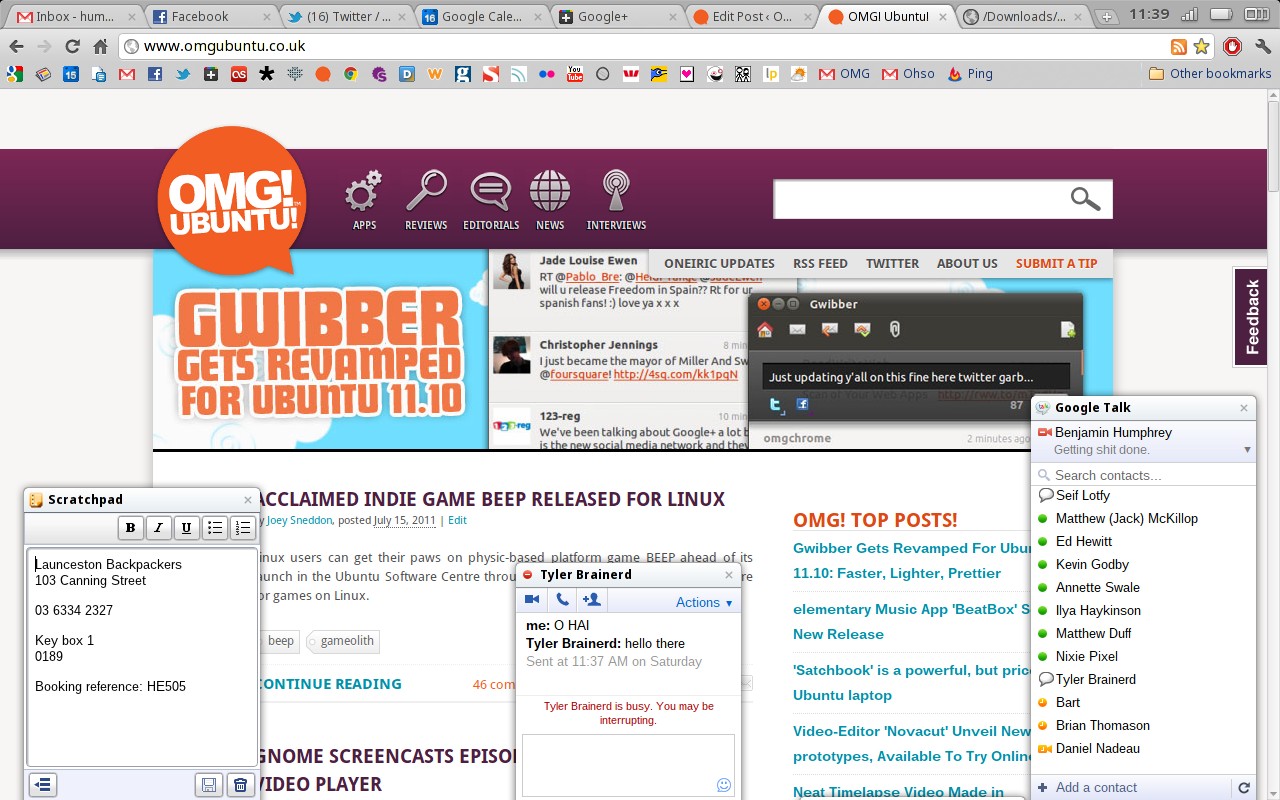
An all new Gwibber is present, boasting a brand new look, slick animated transitions and massively improved performance.


We were given a sneak peek of this just before it landed and it’s come on leaps and bounds since then.


Indicators


It’s all change on the Indicator front with the removal of the Me Menu; a rejigged ‘Messaging Menu’; a new-look session indicator and the arrival of a brand new power indicator (that, joy of joys, is able to actually report you battery life!).

Support for middle-clicking on indicators has also been introduced, but until developers get chance to play around with it don’t expect too much from this just yet.

More


For further information refer to: wiki.ubuntu.com/OneiricOcelot/TechnicalOverview/Alpha3


Source

The Girl Who Didn’t Want Ubuntu [Video]


Alligators in sewers, lucky escapes from hook-handed serial killers and the unpalatable notion that we all eat 8 spiders a year whilst snoozing: all are Urban myths.

Until recently I assumed that the well-known story of a girl from Wisconsin USA, whose inadvertent purchase of a Dell laptop running Ubuntu 7.10 saw her dropping out of her online college classes, was like all of the example above: a load of hot-air.

Turns out it actually happened.


The local new-station, WKOW TV, were overwhelmed by the intense and passionate response to the item, so a follow up report on Abbie Schubert’s situation was soon run. I was expecting to hear that Dell had sent her a Windows disc and all was solved.

But not quite.

Instead, Dell, her internet provider Verizon, and the college to which she was enrolled, MATC, all help her to stick with Ubuntu.

Sadly the follow up piece also touches upon the agressive and defensive response targeted towards both Abbie and the news-station from the Linux community.


It’s easy to “blame” the user in a situation like this for not paying attention when ordering and/or not having enough gusto to figure out problems faced. But I think it’s more telling to note that all of her troubles stem from 3rd parties rather than Ubuntu itself – a fact glossed over in both of the reports.

It wasn’t Ubuntu that was incompatible in this situation but rather the companies providing the services.

I can’t help but wonder how she’s doing now and whether she’s still using Ubuntu.

Maybe i’ll try and find out after I check the drains outside for alligators…

Thanks to K. Hendrik

No related posts.


Source

[How to] Access and Add Files On Your ASUS Transformer in Ubuntu


Despite having had my ASUS Transformer – the company’s hugely successful Android tablet – for almost a week it’s only today that I got around to seeing how it fared when hooked up to Ubuntu.

For adding files to the Transformer ASUS provide some Windows only software. Call me lazy but I couldn’t be bothered to find out this worked through Wine. Instead I wanted a “native” solution.

Thankfully I wasn’t alone. Over on the XDA Developers forum two plucky members had already posted solutions…

gMTP


gMTP can be installed through the Ubuntu Software Centre (click) and provides a simple interface for browsing through files and folders on your Transformer. To add files from your PC to your tablet you simple drag and drop them into the folder you wish to store them in.


Drawbacks include an inability to ‘download’ files from my Transformer to my desktop and no extra ‘views’ for the file browser such as ‘thumbnails’ to make identifying photos easier.

MTPFS


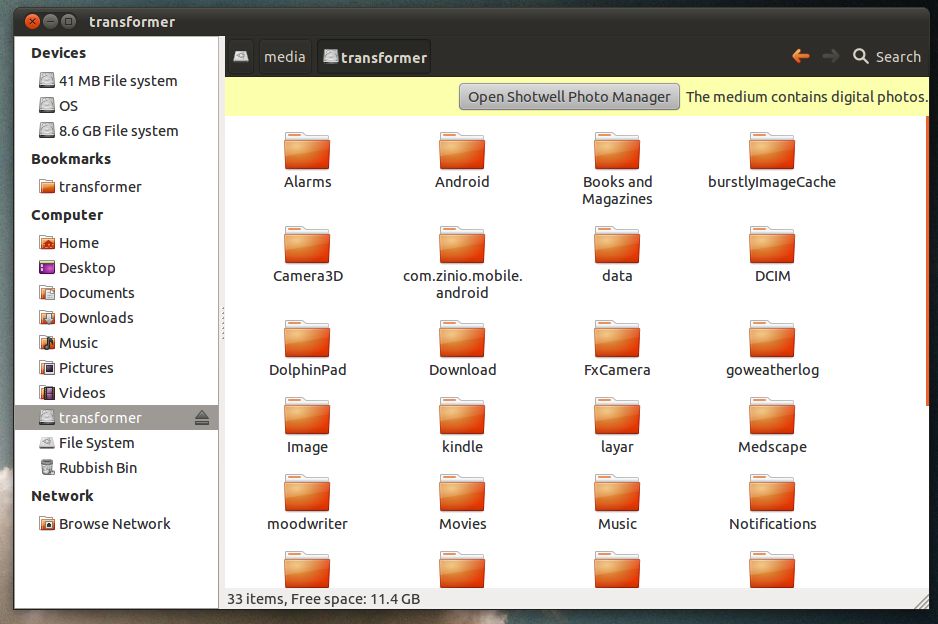
MTPFS is “…a FUSE filesystem that supports reading and writing from any MTP device.” It’s not a standalone programme like gMTP above. Instead MTPFS gives you access to your Transformer files via Nautilus, allowing you to browse them just like any other folder on your desktop.

The main drawback is ‘mounting’ it. One needs to jump through a few hoops to get it set up. If you’re prepared to, and this is certainly my preferred method for now, instructions follow.


Open a terminal and run the following commands separately, entering your password where prompted. Ensure your Transformer is connected via USB to your computer.
  • sudo apt-get install mtpfs
  • sudo mkdir /media/transformer
  • sudo chmod 775 /media/transformer

To “mount” your transformer so you can access, add and download files run: -
  • sudo mtpfs -o allow_other /media/transformer

When done run:
  • sudo umount mtpfs
You will need to repeat the last two steps every time you wish to mount then unmount your device.
Admittedly this method is less than elegant but it does work. Using it I can browse my Transformer using Nautilus, including seeing thumbnails of photos, previews of music tracks by hovering over them, etc.

No related posts.


Source

Lubuntu 11.10 Alpha 3 Released


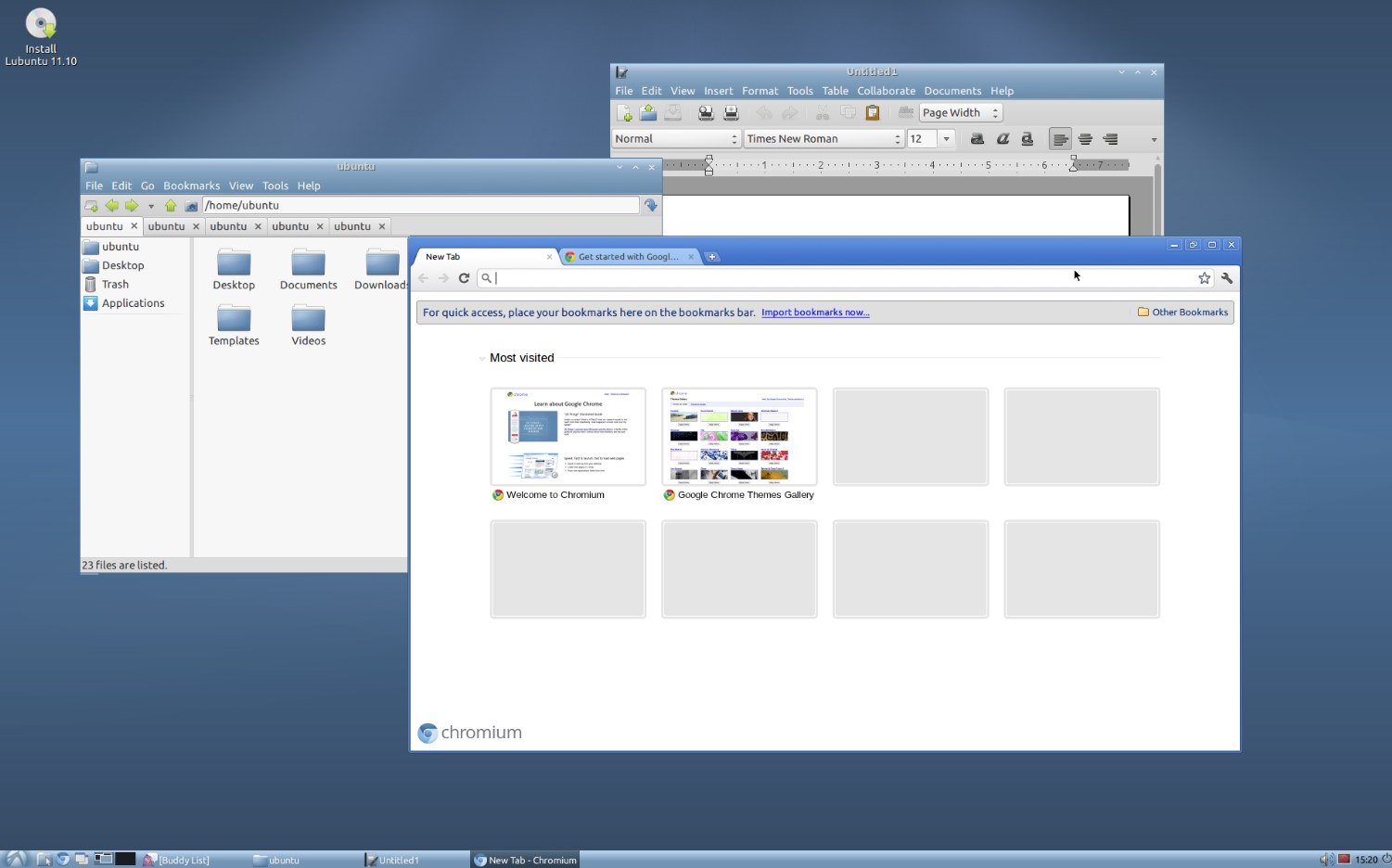
Lubuntu 11.10 Alpha 3 has been released.

-16.20.52-500x311.jpg" alt="Lubuntu 11.10 Alpha 3 desktop" width="500" height="311" />

As a development release Lubuntu 11.10 Alpha 3 is not recommended for everyday use or installation on systems with important data (like your list to Santa, your best man speech or your 3/4 completed game of Braid.)

Lubuntu Alpha 3 is, for the very first time, available to download from the Ubuntu server: -
Note: the Lubuntu 11.10 Alpha 3 CD Image is over-sized.

New in Alpha 3

  • The latest updates of core LXDE components
  • A switch to xfce4-power-manager for power management
  • ‘pidgin-microblog’ is installed as the Microblogging client

Known issues in Alpha 3


Amongst bugs and issues affecting Alpha 3 are ‘Missing icons from various menus (see image) and panel applets; the installation of Gwibber by default; indicators are missing from the LXPanel; and GTK3 applications lack a theme.
missing icons in Lubuntu menus is a known bug of Alpha 3


Source

Disney to Produce Penguin Film… Called ‘Tux’.


The relation to Linux is tangental at best, but the following is amusing in a way…

d-d36hbf7.jpg" alt="" width="250" height="228" />

Deadline.com are reporting that Disney have hired Night At The Museum writer Robert Ben Garant to pen an animated feature about a talking Penguin called, you guessed it, ‘Tux’.

The film is to be an adaptation of “gritty” Japanese graphic novel ‘Tuxedo Gin’, the storyline of which sees a young street fighter “fall into a coma and learns that he …only has enough karma points to be reincarnated as an animal 15 pounds or less.”

That animal is a penguin.

For those unaware of why this is slightly humorous the Linux mascot, Tux, is a penguin. Here’s hoping for a Linux in joke somewhere ;)

I think i’ve written the word penguin too many times now.

Deadline.com  via Janis P.

No related posts.


Source

2011-07-23

Google Chrome OS hands on; we review Samsung’s first Chromebook


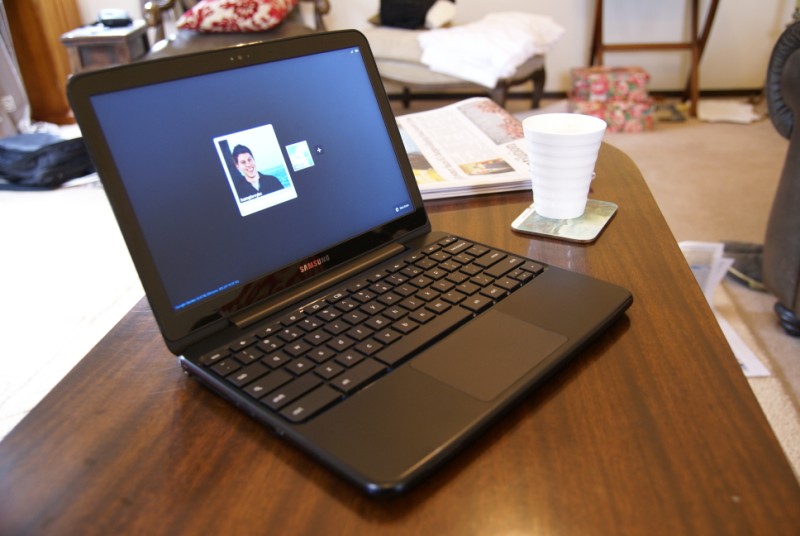
Samsung Series 5 Chromebook with Google Chrome OSt="335" />

It’s not often that a laptop fills a particular purpose gracefully, and Samsung’s first laptop running Google’s new Chrome OS does a pretty good job.

However before you read on, you should first set your expectations. Laptops running Chrome OS, or Chromebooks as they’ve come to be known, aren’t designed to replace your main laptop or desktop computer.

They’re not targeted at people who want to do everything and anything with a personal computer. They’re specifically designed for certain tasks, and they handle these very well, but sometimes you’ll be left wondering why obvious features are missing.

Samsung Series 5 Chromebook with Google Chrome OS

Software


Chrome OS really does live up to its reputation for simply being a fullscreen browser. There’s no desktop, no wallpaper, and for the most part, no windows. It makes for a very streamlined experience, although many features are missing in the current iteration which unfortunately lets the overall product down.


Most things like browsing the web, handling workspaces, extra windows, persistent windows, and wireless networks are complete and work well. But if you’d like to plug in a camera and transfer photos to the local hard drive, or watch an XVID .avi file, you’re out of luck. Chrome OS simply cannot handle things that you’d expect – even if you’re approaching it with an open mind. Thankfully the Chrome OS milestone roadmap hints that these features are just around the corner.

Chrome OS has an interesting way of handling windows. Most of the time, work will be undertaken in a single fullscreen Chrome browser window, with individual pages separated and organized using tabs. However, when creating a new window (using the shortcut Ctrl + N), Chrome OS creates a new fullscreen browser window in a new “workspace” to the right.


This makes it pretty easy to handle a lot of tabs and organize them based on category – my workflow consists of one workspace full of work tabs, one workspace full of social media tabs, and the last for just regular browsing. However, there’s currently no way to move existing tabs to a different workspace, and no option in the context menu to open links in a different workspace than the currently focused one.

Chrome OS handles non-fullscreen windows (like Google Talk) by pinning them to the bottom edge of the screen. From here, they can be minimized and hidden, as well as dragged left and right to be rearranged. They’re persistent across all tabs and workspaces. While these “sticky windows” can take focus for the keyboard and cursor, they never disappear behind the main Chrome browser window. It’s a semi-replacement for a traditional window list or dock, and I think it works very well.


Hardware


The Samsung Series 5 is one of the nicest laptops I have ever used. The form factor simply exists, never frustrating, never begging for attention. It’s light, durable, good looking, has an absolutely delicious keyboard, and extraordinary battery life.


The case on the Arctic White model is matte black plastic with a glossy white lid. Although it’s glossy, the topside of the lid actually has a lot of grip which is great when carrying it around. Unfortunately I found out the hard way that it’s not scratch resistant. The laptop itself is very light and very thin, and for the most part silent unless you’re watching 1080p videos or bathing in the sun, when the small fan kicks in.

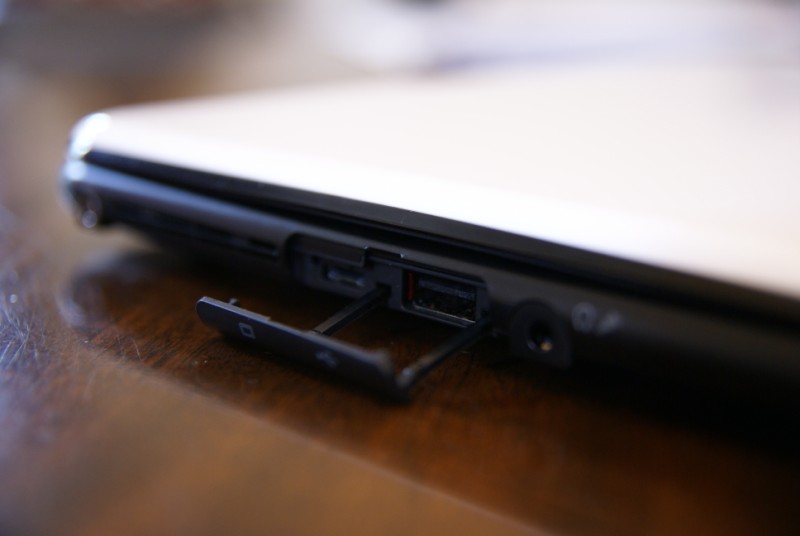
The Series 5 Chromebook has two USB ports, an SD port, a 3.5mm headphone/mic jack, a small video out port (the laptop comes with a VGA adapter), and of course a plug for the charger. If you purchase the 3G version, there’s a SIM card slot too.


Screen, keyboard, and touchpad


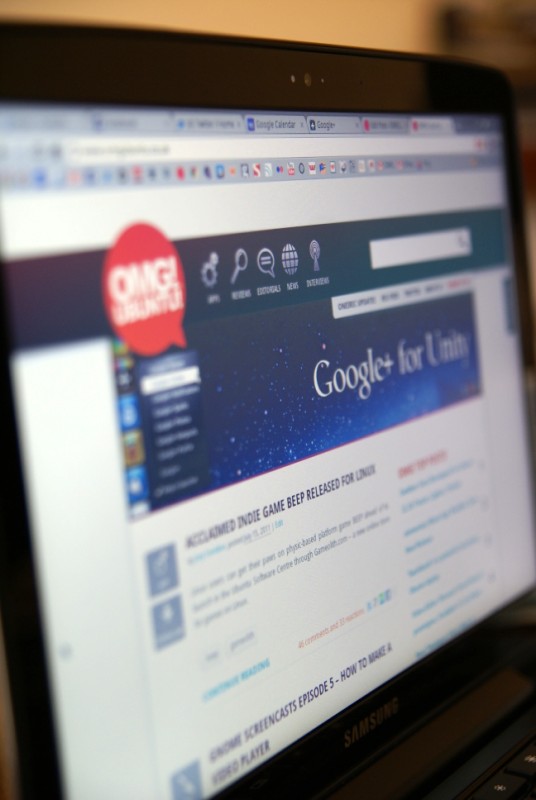
One of the greatest features of the laptop would definitely be the gorgeous 1280 x 800 12.1″ matte screen. It’s exceptionally vibrant and has a ridiculously wide brightness range which goes from backlight off, all the way up to you’ll need sunglasses bright. There’s no doubt that it’s perfectly visible in direct sunlight, and being matte, has very little reflection. My only criticism would be the overzealous light sensor which adjusts the brightness far too often – sometimes it can feel like a strobe light party when sitting too close to a window on a partly cloudy day. Hopefully this will be tweaked in an upcoming software update.


The Series 5 easily has the nicest keyboard I’ve come across on a laptop, and probably surpasses a lot of dedicated products for the desktop. The keys are flat chiclets and respond beautifully to your fingers. The spacing is marvelous, and thanks to a lack of Windows and Function keys, the Control and Alt buttons on the left are huge. Function keys have been replaced with a series of browser-specific shortcut keys and hardware controls. Having a dedicated refresh key is possibly the coolest thing on a keyboard, and the workspace switcher key is a lovely addition allowing seamless sliding between tasks.

Samsung Series 5 Chromebook with Google Chrome OS

The touchpad is very large and one huge button, similar to MacBook Pros. Unfortunately I’ve found the pressure required to depress the button a bit too much, but thankfully tap to click is an option (although not default). It supports two finger scroll which works well, but I’ve found multitouch to be a bit unreliable and certainly not as refined as Apple hardware.

Battery life and instant on


While Samsung quotes around 8 hours under regular use, in practice the Series 5 exceeds this and often gets 9, sometimes up to 10 hours – quite remarkable for a 12.1″ laptop and extremely useful when traveling.

Instant on is one of the features Google is actively marketing, and I can see why. Boot time is usually around 8-10 seconds, but most of the time it’s so quick one doesn’t notice the computer has even been off. Suspend and resume happens in under 3 seconds – usually the laptop is awake and connected to wireless by the time I finish opening the lid.


Chrome OS sells a care-free attitude to laptop computing – simply close the lid and walk away, and the laptop will be ready whenever you come back. It removes all terminology like Shutdown, Restart, Hibernate, Suspend and simply works.

Summary


Overall, the Samsung Series 5 is a lovely piece of hardware and a perfect start to the Chromebook lineup. Samsung have been making quality hardware over the past couple of years, evident in their tablets and smartphones. Not really known for laptops, it’s nice to see Samsung continuing this trend with a gorgeous design and sturdy build quality with the entry into the Chromebook market.

However, the Series 5 as an overall product is let down by comparatively feature-poor software. While you shouldn’t expect a Chromebook to be a full replacement for a complete operating system, it should be able to handle basic things such as copy and paste in the File Manager and playback of common local formats. Thankfully, Chrome OS has a very quick release cycle of 6 weeks, and many of my gripes have been addressed and are targeted to the next couple of updates, so it can only get better.

I think 2011 is going to be an exciting year for cloud computing, but unless you’re a keen early adopter, I’d suggest holding out until later in the year before purchasing a Chromebook to let the software mature a bit more. If you’re simply after a tablet with a keyboard however, the Series 5 might just be the perfect purchase.

Of course, you’ll just have to trust Google.


Awesome cartoon courtesy of Joern Konopka

No related posts.


Source

Ubuntu 11.10 Says Goodbye to the ‘Me Menu’


The ‘Me Menu’ will no longer be installed by default in Ubuntu 11.10.

An update to the indicator menus this weekend saw the ‘Me Menu’ (‘indicator-me‘) removed and replaced with an ‘IM Status’ section in the Messaging Menu.

ntu.co.uk/wp-content/uploads/2011/07/Selection_002.png" >Messaging Menu in Ubuntu 11.10

Why has it gone?


Due to changes elsewhere in Ubuntu the Me Menu had become largely redundant, not least of which is the ‘System Settings’ panel now housing user account settings.

Moving the ‘Status Session’ to the Messaging Menu is also a logical move. Writing on the Messaging Menu wiki page Ubuntu’s Matthew Paul Thomas explains the rationale: -

“The messaging menu aims to make communication easier with other people. It does this first by letting you set IM status quickly and across messaging applications; and secondly by providing quick access to messages, concerning you, that you may not have seen.”

The Messaging Menu is structured to have ‘Status’ section at the top, following by ‘Application’ sections (Empathy, Gwibber, Thunderbird, etc.) followed by two new menu entries: -
  • ‘Clear Items’ – This option removes ‘attention’ from the Messaging Menu by resetting the Messaging Menu panel icons to the default look. Message counts, times, etc. remain visible in the Menu.
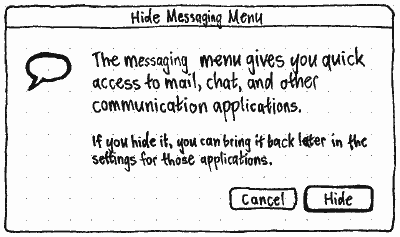
  • ‘Hide This Menu’ – clicking this launches an alert box “explaining the purpose of the menu, and how you can get it back if you change your mind.”

hide.png

The ‘Broadcast’ field previously present in the Me Menu has been retired completely. To Tweet, dent or check Facebook the “new and improved” Gwibber is available.

And for people who think they’re going to miss seeing their name on the desktop I say relax: the Session Menu will display it. (Cheers Bilal)


Source

Summary: Ubuntu Developer Week


Last week was eloperWeek" onclick="javascript:_gaq.push(['_trackEvent','outbound-article','http://wiki.ubuntu.com']);">Ubuntu Developer Week, one week full of tutorials, workshops and presentations with the intention of explaining better what’s going on in the world of Ubuntu development, to ask, learn, get to know and enjoy. These weeks are always over much too quickly, but the good news is, 1) we have logs of all the sessions, their questions and answers (links below) and 2) there’s going to be another one next cycle!

This post got a bit longer, so grab a coffee, sit back and check out what happened last week. (Links go to the logs of the session in question.)

Monday, 11th July 2011


Getting Started with Ubuntu Development - It was my turn to hold the first session at UDW and luckily it was a double session. I just reviewed the log of the session and realised that I had answered 56 questions. We covered the big picture overview of Ubuntu, how it's developed, what to pay attention to and managed to set up our development environments together. It was a bit hectic, but I had loads of fun!

Ubuntu Desktop Q&A - When we announced this, we said there would be "Ubuntu Desktop engineers" – well, it turned out that Sébastien "seb128″ Bacher single-handedly ran the session and did a great job explaining what's planned for the Oneiric Desktop, why and how the Desktop team works.

Packaging Mono for the greater good - Jo Shields was up next and talked us through Packaging Mono. I'm glad he took the time to talk everybody through the very basics of Debian/Ubuntu packaging first and then pointed out how packaging Mono is special. I hope a lot of people got interested and will help Jo and the Debian/Ubuntu Mono team moving forward.

Python packaging with dh7 and dh_python{2,3} - Barry Warsaw had the last session of the day and explained what state-of-the-art Python packaging looks like. Debhelper 7 and the new dh_python makes this a lot easier and there's still a lot to be done to bring our existing packages up to the newest standard. (Talk to Barry to find out how to help!)

Tuesday, 12th July 2011


Getting started with merging packages from debian - Bhavani Shankar kicked off the day and chose a topic which is of interest for contributors to Ubuntu development: What do I do with changes in Ubuntu that are not immediately applicable in Debian? How do I still make sure we get code updates from Debian?

Porting from pygtk to gobject introspection - Martin Pitt gave a great session which explained how to port code that still uses PyGTK to PyGI to make full use of GObject Introspection. Very informative if you want to help out porting old code to the newest state-of-the-art.

Working with bugs reported by apport - Brian Murray was up next and explained how to get the most out of all the automatic information that gets added to bug reports. Bug patterns, duplicate detection, how to get package-specific data added to the bug report and much much more. Read this if you want to make more sense of the bug reports a package you're interested is getting!

Fixing obvious bugs in Launchpad - Deryck Hodge has helped to see many Launchpad releases to the door and knows how to avoid common pitfalls when hacking on Launchpad. If you ever had small issues in Launchpad you wanted to fix, go and read this session log to make sure you get your fix through review quickly and integrated soon.

DEX – how cross-community collaboration works - Nathan Handler took the last session of the day and talked us through the DEX project, what its intention is and how to get involved to particularly get Debian and Ubuntu closer to each other. Patches, Debian Bug tracking system, future plans of DEX, everything included in the logs!

Wednesday, 13th July 2011


Getting Translations Quicker into Launchpad: Upstream Imports Sharing – David Planella kicked off day 3 by giving an interesting session about translations in Ubuntu, Launchpad and how upstream fits into the picture. He explained in detail what message sharing is, what the benefits are and how to enable it for a package/project you're interested in. To get the latest translations goodness, make sure you check out the log.

Debugging the Kernel – John Johansen was up next and talked about the Ubuntu Kernel, how to build it, how to bisect, and the general work flow of the Ubuntu Kernel Team. What was particularly useful was not only to get a first-hand look on how it all works and which commands to run, but also to get all the links to additional information on the topic.

dotdee – break a flat file into dynamically assembled snippets – dotdee helps you switch flat configuration files or simple scripts to a more dynamic setup, where new bits can be put into separate files in a .d/ directory. Dustin Kirkland did a good job of explaining how it works and you can best make use of it. This will hopefully give everyone more flexibility and make management of tools and services much much easier.

Introduction to LAVA – Zygmunt Krynicki was up next and talked about the project he is currently working on: LAVA. It's used within Linaro to organise and manage the huge efforts around QA and certification. In a world with lots of changing code and different configurations it's important to maintain an overview, get clever reporting and understand what changed where. If you're interested in using this for your project, go and have a chat with Zygmunt and read the log.

Introduction to Upstart – Mark Russel took the last slot of the day and talked with great energy about Upstart. How Upstart works, how to make use of it, and talked us in great detail through a live example. Well done, Mark!

Thursday, 14th July 2011


From idea to app in no time with QML – Olivier Tilloy started the day with an excellent session about how to use QML. He had written a small application from scratch and by going through the revisions of the code showed how small code changes immediately and very easily result in great new functionality.

Deploy your App to the cloud, Writing Ensemble formulas 101 – Next up was Ahmed Kamal who also picked a small but very powerful example to showcase the power of Ensemble. Just a few simple commands and you not only deploy Drupal but also keep it scalable very easily. Awesome!

Fixing common ARM build failures – Jani Monoses had the next slot and talked about compiling code on the ARM architecture. It was nice to see that it's sometimes only small things in the code that need to change so you make the package not only build on i386 and amd64, but also on ARM. Way to go!

nux – visual rendering in UIs made easy – Graphics mastermind Jay Taoko talked us through nux and how it is used in Unity currently to very easily render graphics without having to dive too deep into OpenGL. It's very elegant and a lot of fun. Jay was a lot of fun too and explained how Ubuntu worked for him having a Windows background.

Java library packaging with maven-debian-helper – James Page took the last slot of the day gave a very informative overview over Java library packaging. It's clear from the session that it's not really as daunting as you might think it is. Read the log and find out how you can help James with Java packages.

Friday, 15th July 2011


Fixing bugs in compiz – As Sam Spilsbury lives in Australia, he got up very very early for this session (or stayed up very long). This seemed to have no effect on his ability to give an interesting and fun session though. Apart from his love for vegetarian food we learned also learned about Compiz, how to debug it and how to get involved and fix bugs.

Helping develop the Ubuntu Websites – Michael Hall was up next and talked us through a selection of Ubuntu Websites that make use of Django and are maintained as a team effort. One example was the LoCo Directory which is very easy to get involved with.

Bug Triage Class – Carlos de-Avillez and Pedro Villavicencio are quite the double act. They're not just fun to listen to, but they also did a great job explaining how to make sense of a huge mass of bug reports, how to stay productive and how to get in touch with the team.

Lubuntu Development – Phill Whiteside works with the Lubuntu team on bringing LXDE goodness to Ubuntu. Phill put together a quick presentation that should make it easy to understand what Lubuntu is doing, what the plans are and how to get involved.

Project Lightning Talks – Continuing our good tradition of Project Lightning Talks we had great fun again and had quick presentations of devscripts and ubuntu-dev-tools, Melia, tomboy-pastebinit and ibid. Also the idea of reverse lightning talks was discussed, so watch this space to find out what we're going to come up with next time.


Source

The Commodore 64 is back – and it’s running Ubuntu


If you’re old enough (and might I say cool enough) to remember the original Commodore 64 home computer then prepare to get stoked: not only is the device back rocking the same retro look, but it’s back running Ubuntu as well.

The original Commodore 64 was released back in 1982, and went on to become one of the most popular and well-known home computers of all time. The reborn Commodore 64 heeds to the mantra of “If it ain’t broke, don’t fix” by keeping the same ‘look’ as the original.

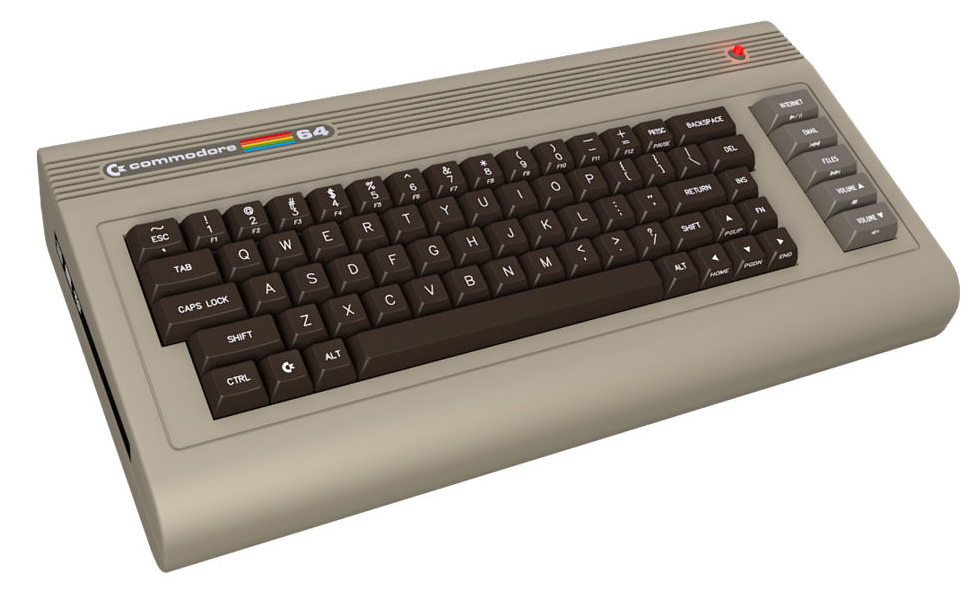
You do need to bring your own mouse and monitor, but you do get a keyboard.

Boy do you get a keyboard: -


The outside might look ancient but the inside is more than capable as a general purpose home computer.

A dual core Atom processor is teamed with a Nvidia Ion2 to make 1080p video playback a smooth affair. 2GB RAM comes as standard, although the C64 supports up to 4GB.

There’s the usual smattering of USB, Audio in/out and VGA ports. A card reader is thrown in for good measure, too.

168694_183011405050388_181491231869072_572686_6507556_n

Somewhat annoyingly the “basic” model ships without a DVD drive or WiFi! The meagre 160GB HDD included hardly cushions this oversight, either.

The ‘new’ Commodore 64 costs $595 – the same price as the original Commodore 64 back in the early 80s. For this price you could undoubtedly find better value for money elsewhere, but you’d lack the Commodore look and the Commodore brand.

“Extras”, such as a larger HDD, WiFi and a Blu-Ray drive can be added, but will bump the price. The OS provided is Ubuntu 10.10.

Fancy biting one of these beauties? Nab them @ the Commodore 64 Website

No related posts.


Source

Find your place in the Ubuntu community – hit up Ubuntu Community Week happening now


Half the battle of wanting to contribute to open source is knowing where to start. I remember when I first started contributing to Ubuntu I found it difficult to discover a project to contribute to, especially since I’m not a developer.

The Ubuntu community are aware of this, and as such, they’ve brainstormed a new event that’s happening right now.

It’s called the Ubuntu Community Week and it’s running from yesterday (Monday, 18th July) to Friday (22 July). We probably should have given you a heads up a bit earlier… but we were too busy wrestling bears and fighting off the byte-toads that hang around our server.

But how does it work, Benjamin!?


The structure is broken down into five different areas which make up the process of contributing to Ubuntu. Targeted at fresh newbies who aren’t part of a project, or are floating on the edge of the Ubuntu universe looking for a way to get in, the week should be useful for people of all shapes and sizes.

The five areas are Find, Create, Grow, Nuture, Govern and are each given a dedicated day.

The whole event takes place on IRC and in this case, in the channel #ubuntu-classroom on irc.freenode.net.

Don’t know what IRC is? Check out this page.

What should I see?


Some of the more interesting sessions include:
  • Podcast your way to a bigger community! with the venerable Alan Pope
  • Working with other groups in your community with the lovely Elizabeth Krumbach
  • Community Manager Q+A with none other than Mr Bacon himself
  • and Haters Gonna Hate: Grow your community with less negativity with Joe Liau

Of course there’s much more than simply these sessions, so if you’ve got a bit of time kicking around and are interested in spreading the Ubuntu word or contributing back to the operating system you love, click through to the official Wiki page for more information as well as a handy dandy schedule.

And if you’ve got any questions, raise them in the comments and I’ll make sure the community team is floating around to answer them. Enjoy!

No related posts.


Source

Ubuntu Download of the Week: Neverputt


It’s been a month or so since my last Download of the Week update, so I’ve had some time to contemplate the next entry: Neverputt

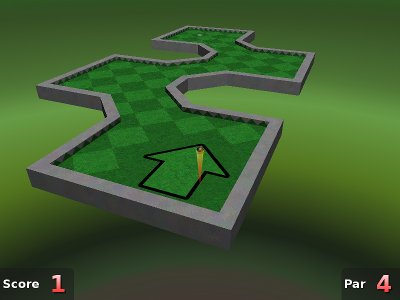
Neverputt is a 3D miniature golf game for 1-4 players.  You are in the first-person hot-seat and must control the direction and velocity of the ball in order to be successful.
Neverputt
Neverputt

Whether you’d like to just relax and play a little putt-putt in peace, or challenge yourself with a bizarre combination of holes, Neverputt will not disappoint.  It ships with seven different courses by default, ranging from easy to insanely difficult.

Many of the holes are similar to those you would see at a real miniature golf course, but some of the more complex holes provide pitfalls such as moving tiles and teleportation.

Neverputt is free software available for all currently supported versions of Ubuntu. For more information, please visit the project’s website on icculus. Please note that most of the information you find there will pertain to Neverputt’s better known big brother, Neverball.


Source

Google+/Picasa Image Uploader For Ubuntu’s Unity Launcher


As the momentum behind Google+ continues to gather pace its users are longing for desktop integration.

To help tide us over until Google release official Google+ tools for developers to play with reader Tom LeJeune has added ‘drag n’ drop’ Picasa image uploading to theHow to] Add a Google+ Quicklist to the Unity Launcher in Ubuntu" href="http://www.omgubuntu.co.uk/2011/07/google-unity-launcher/" target="_blank"> Google+ Unity Launcher Quicklist we featured recently.

If it sounds like something you’d use, here’s how…

Installing GoogleCL in Ubuntu


The first step is to install ‘googlecl‘ – a set of neat command line tools provided by Google for accessing their various services. GoogleCL is available through the Ubuntu Software Centre, so either search for it manually or hit the button below to launch and proceed.
install googlecl in ubuntu by pressing this buttonAfter installing GoogleCL you’ll need to authorize your Picasa account with it.
  • Open terminal
  • Type ‘google picasa list‘
  • Enter your username (sallysue@gmail.com)
  • Your browser will launch, taking you to an authorization page.
  • Agree/accept/allow access to GoogleCL
  • Return to the Terminal window and be patient: it can sometimes take a good few minutes for GoogleCL to receive instructions.

Adding Google+ Picasa Uploader to Unity Launcher


With the preparation out of the way we can move on to adding and installing the Google+ launcher.

Download the Google+ Unity Launcher package by pressing the button below.

Once downloaded move this package to your Home folder, extract then press CTRL+H to reveal “hidden” files.

Find the folder named ‘.googleplus‘. (Note the period proceeding the name.)

Double-click on the folder icon to enter it.

Inside, open the file named ‘googleplus.desktop’ in Text Edit/Gedit. Change the username of the lines starting ‘Exec’ and ‘Icon’ to yours. (Highlighted in yellow in the image below)


Save and close the file.

The next step is to get it able to ‘run’. To do this you need to right click on  the file (googleplus.desktop) and choose ‘Properties‘ from the resulting menu.

Once the ‘File Properties‘ window has opened choose the ‘Permissions‘ tab, and check the box next to ‘Allow Executing File as Program‘.


If you’ve done everything correctly you should now see a small Google+ icon with ‘Google+‘ written underneath it. This is the file we’ll be adding to the Unity Launcher.


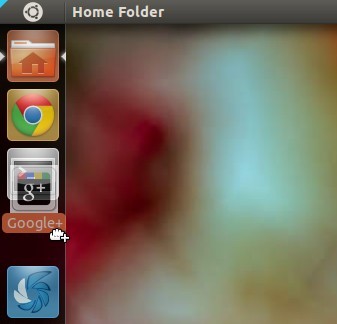
Drag and drop the file over to the Unity Launcher.


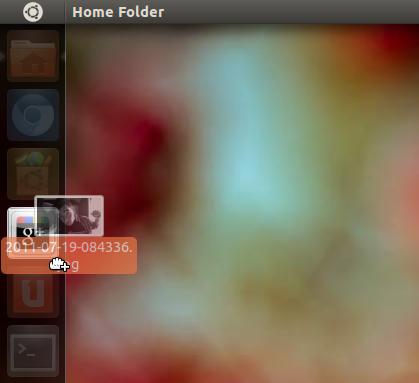
And you’re done! You can now drag and drop a picture or image file for instant upload to your Picasa web albums, and depending on your settings will appear in your Google+ Stream/Photos tab.


One draw back to TLJ’s app is that you can’t choose which album to add a photo to. As such you’ll be prompted to create a new album with each upload.


Once successfully uploaded the Picasa album will auto-open in your browser, ready for you to edit.


Source