2011-05-28

Ubuntu Advertising team launch user experience survey


er="0" alt="UAT2" width="240" height="96" />The community-led Ubuntu Advertisement team have launched a new ‘user experience survey’ whose responses ‘may be used in statistics and publicity.’

The survey itself won’t take up much of your time and you’ll be helping out Ubuntu in the process.

For more information on the Ubuntu Advertising team check out their official site @ ubuntuadverts.org or their wiki page @ https://wiki.ubuntu.com/UbuntuAdverts


Source

5 ways to make using multiple computers and devices more efficient with Ubuntu


I hate cables.

There, I have finally managed to start the article. But getting back to the cables, I have a mouse, which connects to my computer. Fair enough: that’s a worthy cause for a cable.

But then I got a second computer. Now what do I do? Just use the touchpad on one? Or do I get a second mouse and make my desk even more cluttered? A better option would be to have the mouse shared between the two computers.

In this article I will provide a series of solutions which aim to make using multiple computers/devices a far more efficient business. Obviously you may not need all (or any) or them but I hope that you find some of them useful.

1) Connecting your devices / sharing internet


The first thing to do is get all the devices on a network talking to each other. At home this is easy as I have a wireless network setup and I can join that with all my devices however at University there is a wired network which I can only connect a single device to.

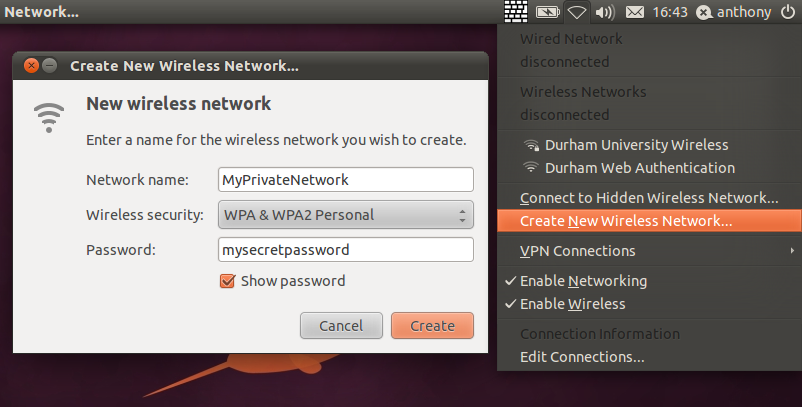
Enter Ad-Hoc. By connecting my laptop to the wired network, and creating an Ad-Hoc network on it, I can share the internet connection and have all my devices on a private network. Whether or not you can host an Ad-Hoc network depends on your network card – some support it, some don’t, some support it but don’t like encryption, etc. If your network card does support it then you can host an Ad-Hoc network by clicking on the network icon in the panel and “Choosing create new wireless network…”. You will then be presented with a dialog where you can enter the network settings. Once created, you can join this network just as you would any other with your devices.

It is worth mentioning that you can only connect to 1 network per network card, so you can’t join a wireless network and host an Ad-Hoc. However, you can use Mobile Internet or Ethernet and host.

2a) Sharing files


So you want to share files between your devices, so what is the easiest way?

There are several ways to share files but as a start I would recommend Samba.

Samba implements the network sharing protocol used by windows on other operating systems such as Linux, Mac, Unix, BSD etc. It integrates very well with nautilus but for some reason doesn’t seem to come fully installed by default.

click to install Samba in Ubuntu

Once installed you may need to restart your computer before it’s recognised (or simply start the required services if you know what you’re doing).

You can share a folder in Nautilus, by right clicking on it and selecting “Sharing Options”. It is fairly clear what to do here and you have a few options you can configure. (See the screenshot above.)

To browse shares on the network, go to Places > Network > Windows Network > {{WORKGROUP}} > {{COMPUTER-NAME}}

2b) Sharing files with devices


Sure, we all have a data-cable for our phone lying around somewhere, but it’s not always practical to use. For example, when I plug my phone into my computer, my phone no longer reads the memory card, resets the theme, re-orders my applications menu and changes the locations texts are saved to!

Even without that, it is the 21st century and there are easier ways; You can connect to most devices wirelessly, either over FTP or SSH.

For example, with my phone (Symbian) there is a program called SypFTP which hosts an FTP server on my phone. iPhone users can install an SSH server from Cydia (remember to change your password if you do this, for both root and user). Have a Google to try and find out how to host an FTP or SSH server on your phone device.

It is also possible to run an SSH or FTP server on a computer by installing ‘ssh-server‘. You can then connect to it in the same way.

To connect to your device from your computer, make sure you know the local IP of the device, that is the IP of the device on the network.

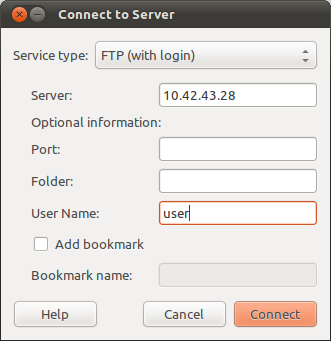
From Nautilus, select File > Connect to Server. Under service type, select the type of connection. This is mostly likely to be SSH or FTP (with login).

Type in your devices IP in the server box, and the username in the appropriate box. You can leave the others blank usually, unless you are hosting on an unconventional port. If you add a bookmark your device will appear in the places menu and it will be easy to connect to it again.

Press connect and your device will be available in Nautilus.

3) Sharing mice and keyboards


Two computers on one desk is bad enough, but then add 2 mice and 2 keyboards and you are rapidly approaching spaghetti junction! It’s much more convenient to use one mouse and one keyboard for both computers. But how?

Enter Synergy.

Synergy allows you to share a mouse, keyboard, and clipboard between 2 computers over the network. Yes, that’s copy and paste over the network! Synergy also works cross platform so you can share you mouse between an Ubuntu PC and a Windows one!

image

Synergy is a command line utility but a nice GUI frontend called ‘Quick Synergy’ is also available. For the purposes of this article we’ll be using Quick Synergy.


Launch ‘Quick Synergy’ on both computers that intend to share the mouse. The computer which has the mouse physically plugged into it will be the server. In Quick Synergy this goes in the ‘Share’ tab.

The other computer(s) will be the clients. Allocate these screen-names in the ‘Use’ tab.

For the server hostname/IP address you need to type in the IP (or hostname) of the computer you are connecting to.

On the server, in the share tab, there is a home icon with 4 text boxes surrounding it. In these you should type the screen-names of the client computer(s). Once you are done press execute followed by close. You can now press execute one each of the clients, and close, and your cursor should change between computers when you go over the screen edge.

4) Sharing audio


Pulse audio runs as a server and a client however there is no reason why the server and client should be on the same computer. In order to configure pulse audio, you first need to install some additional programs: -

image

Once installed, you need to launch the app on all your computers. It can be found as “Pulse Audio Preferences” in the Unity Dash or launched from the Terminal by running ‘paprefs‘.

On the computer connected to your speakers, use the “Network Server” tab, and check both “Enable network access to local sound devices” and “Allow other machines on the LAN to discover local sound devices“. I found I also had to enable “Don’t require authentication“, however, obviously this is not recommended for a public network.

On the computers you want to connect with check the “Make discoverable PulseAudio network devices available locally” option.

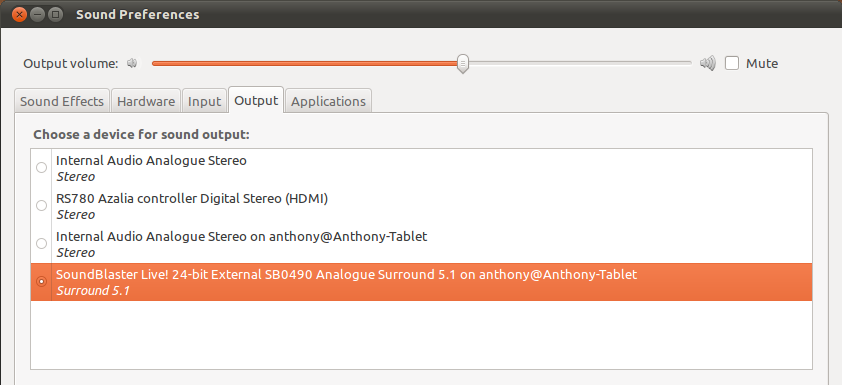
You should now be able see the shared output devices in the default Sound Preferences application.


If you don’t see the devices straight away, sometimes un-checking and re-checking “Make discoverable PulseAudio network devices available locally” will cause them to be discovered.

5) Sharing applications


Between your own computers there is often not a great deal of need to share applications, however, if you are in a position like me, where there is a lot of useful software on the university computers which you would like to be able to run conveniently, then you can use SSH.

For simple cli based programs, you can simply connect with the command
  • ssh user@host

So, for example, to connect to my laptop I would run
  • ssh anthony@129.234.126.157

After you have run this any commands you run will be like running a command directly on the computer. This is useful for very simple things, however, if you want to run more complex applications, you need an X server.

To do this run the following command instead,
  • ssh -X user@host

This will then forward X programs to your own X server. You can run programs for command line, such as nautilus to get the file manager. However, I have found it far more convenient to simply run gnome-panel &, which gives you the panel from the computer you are connected to on your desktop. You can then browse through the applications using easy-to-use menus.

Screenshot4-r93


Source

Download of the Week: Family Farm


This week, I will be highlighting a recently launched game in the software center: Family Farm.


" >Family Farm - 19th century homesteading game


Unlike the wildly successful Facebook game FarmVille, Family Farm is more of a simulation focusing on not just the advancement of the farm itself, but also the family unit that runs it. The player progresses through the game by completing “stories.”  In order to finish a story, you’ll need to perform a certain number of allotted tasks in a specified period of time. Game time moves much faster than real time, and it can be fast forwarded on demand; entire seasons can be skipped if the user so chooses.

Stories are contained in a collection called a “series.” You must complete one story before moving to the next. You must not only complete a series before moving on to the next series, but also reach a certain level.  New levels are obtained by completing the tasks set before you and winning in-game “trophies”.

Aside from progression, there is also a competition aspect to the game.  While not technically a multiplayer game, your friends or family members can each create a profile in-game and compete to beat your scores.  So, you’ll not just want to coast through the game, you should try to keep your workers happy and healthy to earn the highest score possible.

Family Farm costs $14.99USD in the Ubuntu Software Center and is available for Maverick and Natty. If you’d like even more information on the game, click here to visit the author’s website.


Source

The Evolution of the Personal Package Archive system


When the Personal Package Archive (PPA) system was brought out of beta in November 2007, it was heralded as a game changer for Free Software developers within the Ubuntu community and beyond.

The PPA system was designed to make it easier for developers to get their software packaged and available to users for testing, thereby speeding up project development and delivering higher quality software.

After nearly four years of PPAs, I thought I’d find out out whether the original objectives of the PPA system were still the primary focus – or had PPAs taken on a whole new role, filling a gap that’s traditionally been a sore point for Ubuntu?

Initial demand for the PPA system


Right from the outset, the idea of the PPA was to make it easier for developers to get their under-development software into the hands of community testers for wider scale testing. As Matt Zimmerman, Ubuntu’s Chief Technical Officer explained at the time:

"A PPA allows a developer to form a community of testers who are interested in their changes. The testing community can install the packages, run them for the test period and then remove them cleanly from their system.”

Packaging software has always been a difficult endeavor, requiring a certain skill so pronounced that it defines a class of contributors in itself. Even if you had managed to package some software for extra testing, there was the issue of distribution. The process of landing software in the official repositories is time consuming, bureaucratic, and since we are dealing with development quality code, not something that the main Ubuntu repositories were designed to store anyway.

Ubuntu is of course shipped with certain tested versions of software to enable a default and stable experience. Other than posting on personal or project blogs, before the existence of PPAs, the only way to conduct efficient wide-scale testing was by announcing new updates via mailing lists or IRC, when community testers could download .deb packages or compile software from the source.

An easier way


PPAs were a breath of fresh air – not only did they make packaging simpler but they also promised easier (and much wider) distribution, and at the same time reducing the barrier to entry for testers. Anybody could simply add a PPA to their software sources list, fetch the GPG key, run an update, and then the software was available to install like anything else.

Over the years, PPAs became increasingly easier for mainstream users to add to their system. When Ubuntu 9.10 was released at the end of 2009, all PPA management could be accomplished via a graphical interface which even fetched the security key and kept the Terminal hidden out of sight.

One of the major disadvantages of Ubuntu, being a non-rolling release distro, has been that post-release software updates simply don’t happen. If a new version of Firefox is released midway through an Ubuntu cycle (like Firefox 4 in March this year), there’s no easy way for users to get their hands on this update without manually installing a .deb, building from source, or – you guessed it – adding a PPA.

Better yet, come upgrade time, a lot of distribution upgrades suffer from broken packages due to hefty amounts of PPAs and distinctly erratic version numbers for applications caused by the manual installation of PPAs. One of the leading causes of broken upgrades is failures in the packaging system due to complicated mixes of non-PPA and PPA installed applications.

I talked to Canonical’s Brian Thomason, who maintains the Partner and For Purchase repositories. Brian suggested that PPAs are useful for delivering new and stable updates, provided they’re packaged correctly.

“In general people just throw new versions of things such as Firefox into a PPA rather than taking care to have it Conflict/Replace with the package in the main repo. If Firefox 3 is in the archive under the package name firefox, and a PPA maintainer releases Firefox 4 under the same package name, firefox, yes, that could potentially lead to distribution upgrade problems later.”

Recently the Ubuntu team have been looking at ways of delivering post release software updates for major apps during a release lifespan, but there’s still a very active culture of PPA abusers – those who use the PPA system to their advantage to distribute newer versions of software, rather than using the PPA system as it was originally intended: testing development versions of your own personal projects. PPAs have become Public Packaging Archives.

Banshee is the default media player in Ubuntu and is a very actively maintained project with many developers and regular releases. Providing the user doesn’t add the Banshee PPA, the version of Banshee that shipped in Ubuntu 11.04 will remain the same throughout the cycle for six months until the user upgrades to Ubuntu 11.10.

In the case of Long Term Support (LTS) releases, the wait can be up to two years.

The majority of users who have added the Banshee PPA have done so not because they’re actively testing Banshee and submitting bug reports, but because they want the latest software on their stable Ubuntu install. This suggests that the problem isn’t actually with PPAs, but rather with the lack of stable software updates post-release – a niche that PPAs have unwittingly filled.


Security


"Many developers want to modify existing packages, or create new packages of their software. The PPA service allows anyone to publish a package without having to ask permission or join the Ubuntu project as a developer.” – Christian Reis, Launchpad Release Manager, 2007.

One of the benefits of PPAs is that nobody has to “okay” them. They’re untrusted. This allows developers to quickly make their software available for testing while minimizing any checking procedures, which takes time. It means that anyone with a Launchpad account can create a malicious PPA and disguise it as some other software, perhaps a fork of an already popular application.

Of course, when a user adds a PPA they’ll need to enter in their password – a sign that what they’re doing could potentially harm their system, so you could argue it’s the users’ fault if they install something that’s not checked out beforehand.

The problem with this is that the password prompt in Ubuntu is somewhat similar to the story of the boy who cried wolf. Ubuntu prompts for your user password on so many occasions, for many it’s built into their daily usage and thinking twice before entering a password may be something users don’t do.

Coupled with the fact that there is no distinguishable difference between installing software through trusted repositories, such as the main repository, and then installing software through a PPA. Both require the same password prompt – there’s no indication that one could be more malicious than the other even though this is in fact the case.

Why not just tell people not to use PPAs?


Lately, OMG! Ubuntu! has been criticized for posting installation instructions for PPAs that – due to the nature of the PPA system – could contain untested or malicious software. Of course, OMG! Ubuntu! checks out PPAs before recommending them, and even then, each set of PPA installation instructions are accompanied with a disclaimer.

Can OMG! Ubuntu! be held accountable for what is not only a hypothetical situation (because so far, none of our readers have complained about any malicious activity caused by a PPA we promote), but also one where the problem doesn’t lie with us, but with the current software distribution setup that Ubuntu employs?

Websites such as OMG! Ubuntu! exist to make the users’ life easier, and currently, the easiest way for users to get the latest stable updates of their favourite applications is via a PPA. Whether or not that’s the most secure way isn’t our concern – PPAs are a product of Launchpad and Canonical. They weren’t created by us.

Perhaps Canonical should employ a full time person to explain to news outlets that advocating PPAs isn’t something they should be doing – after all, even as recently as this month, an article in The Guardian mentioned how easy it was to add third party software to Ubuntu. The author mentioned nothing about the security implications of doing so.

As Ubuntu grows, the likelihood that somebody creates a PPA purporting to be providing wholesome and trustworthy updates, but in actual fact runs malicious scripts instead is an ever increasing threat, and rather than trying to police the media with the argument “don’t install PPAs, they could be dangerous” it would be better to fix the problem deeper down.

Clearly there is a demand in Ubuntu for easy installation of newer software updates. The versions provided in official channels can often be as much as two years out of date.

PPAs have become a convenient solution to a problem which has never been addressed, and they’re serving a purpose for which they were never designed. As a side effect, the media is being blamed for promoting them due to their convenience, because there simply is no other easy way.


Source

Ubuntu-ize your Android phone with this slick Ubuntu Unity theme pack


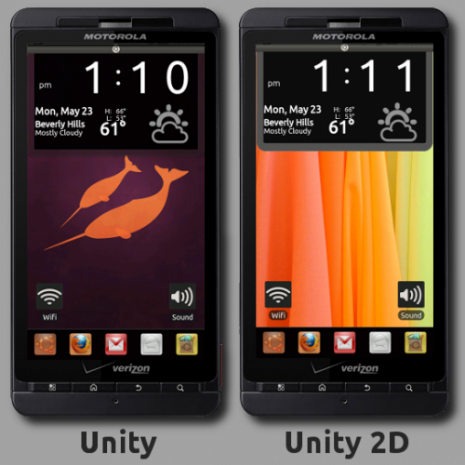
Self-described ‘Ubuntu YouTube and Android fanatic’ Joe Steiger has finally published his long-in-development Ubuntu Unity themed Android skin.

Ubuntu-Android-skin2-500x500 (1)-r93

The theme pack contains various elements of the pack make use of paid applications, so if you’re shy of spending a couple of pounds/dollars on some nifty software then you might not be able to recreate the look as intended.

Included are: -
  • 1 LauncherPro Dock
  • 71 Icons
  • 6 Toggle images for Better Cut
  • 4 Wallpapers (960×854 resolution)

Download links, along with more information, can be found on Joe’s blog @ joesteiger.com/2011/05/23/ubuntu-unity-android-skin/


Source

Bumblebee brings nvidia optimus GPU switching to Linux users


Ubuntu users with laptops housing NVIDIA’s “Optimus” technology, which allows Windows users to switch between Intel integrated graphics and NVIDIA’s own graphics chips as and when needed, may be interested to learn of a new open-source tool which aims to enable the feature on Linux.

Called 216;Bumblebee‘, the tool gives users the ability to ‘shut down’ the NVIDIA graphics card when not required and use the integrated graphics – ideal for word processing and basic web-browsing where long battery life is a boon; it can switch back to dedicated graphics when you need some GPU grunt and – rather impressively – it can use both cards at the same time so that each GPU handles a different task.

No auto-switching. Yet.


The ‘automatic graphics switching’ feature, which can intelligently use the appropriate graphics source depending on the application in use,  isn't available yet for Linux.

More information, along with details on how to get the very-much-in-development utility can be found @ github.com/MrMEEE/bumblebee

Via liliputing.com


Source

‘Super Boot Manager’ eases BURG, GRUB, Plymouth tweaking pains


Tweaking your GRUB bootloader to look pretty can often not only be confusing but leave you with a broken system should you get it wrong!

The newly launched ‘Super Boot Manager’ application, created by the developers behind graphical boot menu BURG, aims to streamline and simplify the process of tweaking boot ‘options’.

Super Boot manager is made up of three modules. Each one deals with a specific ‘boot’ function. You do not need to use all of them; if you want to tweak Plymouth alone simply use the ‘Plymouth’ module.

As with anything bootloader-related you are not advised to "mess" with GRUB unless you’re confident in what you’re doing and able to revert any changes.

GRUB Module


The GRUB module is capable of handling the most oft-used tasks, such as: -
  • One-click to re/install GRUB
  • Easy way to set the default boot OS
  • Change the GRUB screen resolution and menu time out
  • Remove old kernel/menu entries
  • Tweak text colours and set a background picture
  • Booting an .iso

buc_061-484x500-r80

Plymouth manager


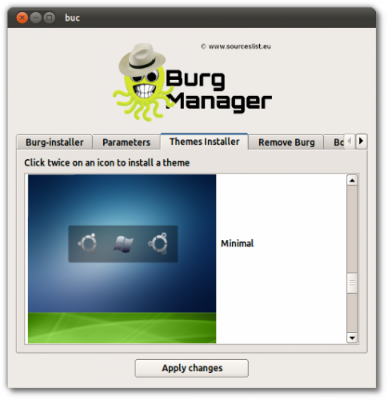
The Plymouth module comes with some super helpful options. There is one-click enable/disabling of Plymouth itself, a gallery of alternative animated boot themes ready for easy download and, perhaps the jewel in the octopus-shaped crown, a one-click ‘proprietary driver’ fix that can help to turn a  garbled Plymouth boot under "official" drivers into something worth looking at.

buc_067-497x500-r80

BURG manager


Finally the option set many of you will be downloading the app for: the graphical bootloader BURG.

The BURG module in SBM comes with options not so dissimilar to that of GRUB, albeit with some added ‘visual’ goodness.

With one click can you install BURG itself to a hard drive of your choosing.

Set the default OS to boot into; set the screen resolution and timeout for the menu; easily install and enable  new themes (note that some may be considered inappropriate).

And the proverbial cherry-on-top comes in the form of a ‘BURG Removal’ button that wipes BURG away and reinstalls the traditional GRUB menu.

buc_069-485x500-r80

Download


Super Boot Manager is a free download and can be installed from a PPA, below, or manually downloaded and install  from sourceslist.eu.

The Super Boot Manager PPA provides packages for Ubuntu 10.04, 10.10 and 11.04.
  • sudo add-apt-repository ppa:ingalex/super-boot-manager
  • sudo apt-get update && sudo apt-get install buc super-boot-manager

Once installed search ‘super boot’ in the Unity Dash or look for ‘Super Boot Manager’ under the ‘System’ menu.

Thanks to Jan B


Source

KDE 4.7 hits beta


The first beta of KDE software-compilation 4.7 has been released.

Comprising of the KDE desktop and netbook desktops, KDE applications and the KDE platform, the 4.7 release sees performance improvements to window manager ‘KWin’, interface refinements to default  file browser Dolphin and ‘offline-address search’ to Marble, KDE’s “virtual globe” application.

KDE 4.7 is targeted fir release on July 17, 2011.

The KDE Plasma Desktop Workspace

Source packages can be downloaded from the KDE 4.7 Beta Info Page.

No related posts.


Source

This GNOME-Shell ‘Ubuntu Ambiance’ theme is pretty sublime


Deviantart-ist ~half-left continues to churn out high-quality well designed GNOME-Shell themes at an alarmingly envious rate.

One of his recent “creations” caught my eye in particular – an Ubuntu Ambiance styled GNOME-Shell theme.

nome_shell__ubuntu_ambience_by_half_left-d3h6ouv.jpg" onclick="javascript:_gaq.push(['_trackEvent','outbound-article','fc05.deviantart.net']);" target="_blank">

Everything has had attention paid to it: mouse-over highlights, ‘indented’ shadow colourings and, rather amusingly to my mind, the GNOME ‘overlay’ category buttons have been Ambiance-ized to look like Ubuntu’s Nautilus breadcrumbs! Not entirely sold on the grey coloured dock and workspace switcher – the off-white colour of Ubuntu’s mono-icons/nautilus sidebar may have been a more appropriate choice.

If you’re an Ubuntu 11.04 GNOME 3 users missing some of the warm charcoal styling’s that your desktop should come with I say give it a go.

Download and installation instructions can be found @ half-left.deviantart.com/art/GNOME-Shell-Ubuntu-Ambience-210264151

It should be noted that this is a GNOME-Shell theme – as in a theme for the shell itself – and not a GTK3 port of the Ubuntu Ambiance theme.


Source

Ubuntu Faenza theme for iOS


Yesterday we shared word Joe Steiger’s awesome Ubuntu Unity Android theme. Whilst the theme proved popular with a great many of you – becoming one of our most tweeted posts for May – a number of you wished there was something similar for non-Android devices.

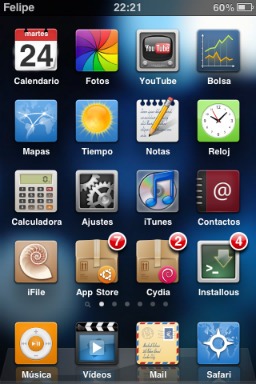
Below is a new Ubuntu-esque ‘Faenza’ theme for iOS devices, put together by Alfonso C.M. It’s not strictly a “unity” theme, and it lacks some of the cute touches that Steiger’s theme boasted, but if nevertheless looks like a great way to extend your love of Ubuntu onto your mobile device.

Ubuntu themed iOS lockscreen Faenza icons in iOS

Alfonso writes (courtesy of Google translate!): -

“Many are dedicated to giving Ubuntu an aspect of Mac OSX but I wanted to do the reverse, giving the appearance of iOS beloved operating system for novice Linux users and / or lovers of the philosophy of “Linux for Human beings”…”

It’s a noble aim, and one that scores an impressive hit.

Coming June 1st


Applying the theme will require a rooted iOS device and some the ‘Cydia’ store installed from which it will be available to download on June 1st. We’ll give you a poke when it’s online ready.

Whilst the author created the theme for his iPod Touch he says it will also work on an iPhone.

Alfonso via fcabargas


Source

Clipboard manger Diodon debuts Unity Lens


Clipboard manager ‘Diodon’ is to soon add a searchable Unity lens  for clipboard entries to its default package.

Currently available for testing in the Diodon Daily PPA the lens itself is a standard affair with recent clipboard items presented as clickable ’tiles’.  Users can also filter clipboard entries using the search field.

Screenshot-r90

As someone who doesn’t need a clipboard manager, let alone a way to search previous clipboard entries, I’m not the best person to wax lyrical on the merits of a lens such as this.

But I can admit that the lens, although currently buggy and not-recommended for installation on production systems, provides an impressively quick way to find previously copied text, images and files.

Help test it


As previously mentioned, the Lens is in testing and can be installed from the Diodon Daily PPA. This is not recommended for casual users or those needing reliable performance from a feature such as this.

Add ‘ppa:diodon-team/daily’ to your Software Sources, update and then either run an upgrade (if you already have Diodon installed) or search for and install ‘Diodon’ from the Ubuntu Software Centre.

You will need to log out and back in for the Lens to appear and begin working.

Via Diodon


Source

[How to] Fix ‘low sound’ on a Macbook running Ubuntu 11.04


Macbook users experiencing sound problems with heir speakers in Ubuntu 11.04 may benefit from the following ‘fix’.

x" id="wylio-flickr-image-4309252666">macbookphoto © 2010 Simon Cocks | more info (via: Wylio)

Adwait, of blog ‘thepirado’, wrote of a fix he found via the Ubuntu IRC channel.

Fixing low volume sound on a Macbook with Ubuntu 11.04

You need to add a new line to a system module configuration file. As poking around with system modules can be risky, make sure you only edit/enter the commands stated below.

Open a terminal (or ALT+f2) and enter the following command:
  • gksu gedit /etc/modprobe.d/alsa-base.conf

In the text file that opens up add: -
  • options snd-hda-intel model=mbp55

to the bottom of the document. Hit save and close. Reboot Ubuntu and, providing this was the issue afflicting you, your sound should return to normal.
LED

Adwait was also experiencing issues with the speakers LED. He suggests adding: -
  • amixer set IEC958 off

to the file above to switch it off.

Via thepirado.com

No related posts.


Source