2012-06-24

ScreenCloud Lets You Take, Share Ubuntu Screenshots Quickly


A new screenshotting tool has been added to the Ubuntu Software Center.

Screencloud sits the menu area, allowing for quick snapping of windows, specific areas or application windows, then directly uploads them to either FTP or the ScreenCloud website for easy sharing.


Features


The charm of ScreenCloud is undoubtedly in its simplicity. It takes and uploads screenshots, nothing more.

But for advanced options you’ll want to head on into the preferences. Options there include: -
  • Set timer delay
  • Enable ‘Capture window borders’
  • Enable/Disable Notifications
  • Set app to run on start up
  • Adjust account/upload/filename/shortcut settings

Uploading


One drawback is that to share photos on the ScreenCloud service you need to sign up for an account. If you don’t want to do so then your “uploading” choices are limited to FTP or local storage.

With FTP or ScreenCloud account set up, screenshots are automatically uploaded seconds after being taken. Image URLs are instantly copied to the system clipboard for sharing.


Screencloud is a free download, available from the Ubuntu Software Center.


Source

2011-10-28

Would You Get an Ubuntu Tattoo Like This?


As the editor of an online Ubuntu  website it’d be fair to surmise that i’m fairly committed to the Ubuntu project.

But committed enough to get the Ubuntu logo tattooed on to my arm? Not quite.

article','http://wiki.ubuntu.com']);" target="_blank">Benjamin Kerensa has no such qualms: here he is showing off his newly daubed Ubuntu logo: -

Circle of Friends

Let’s hope Canonical don’t change the Ubuntu logo/branding colours anytime soon, eh? ;)

Via benjamin kerensa

No related posts.


Source

Ubuntu 12.04 Development Update


(This is a guest post from Ubuntu developer and Canonical employee Daniel Holbach, which was originally posted here.)

Ubuntu Development Update

<br />It is always an exciting time when a new release opens. As a developer you get to finally merge the feature you would have liked to see in the last release already and you can merge changes you submitted to Upstream. We have a 27 weeks until the new release gets out, so lots of time to get everything into a tip-top LTS-release worthy state.

As mentioned in the last update, Matthias Klose and Colin Watson have been coordinating the opening of the ‘precise’ series, here’s a few key changes that have already landed: an updated toolchain and a 3.1 linux pre-release, among 570+ other uploads to ‘precise’. It’s a great to see this well-oiled machinery getting to work at the start of every cycle and everybody working hard to reduce the delta between Ubuntu and Upstream (including Debian).

If you want to get involved with Ubuntu development, now is a great time. You still have 27 weeks left to get your great work out to millions of happy LTS users.

Events


Ubuntu Open Week
This week Ubuntu Open Week happened (in fact, today is the last day), with heaps of great sessions about all kinds of Ubuntu topics. Daniel ‘dholbach’ Holbach gave a double session about “Getting started with Ubuntu Development” and got loads of great questions from the audience.

Ubuntu Developer Summit
UDS is kicking off on 31st October in sunny Florida. This is where all the plans for 12.04 are going to be discussed and long lists of work items are written. Check out Stefano Rivera’s list of specification blueprints that were last registered to get an idea what’s going to get discussed.

Spotlight: Ubuntu Friendly


While we were working together in Berlin, I had a chat with Ara Pulido, who has been leading the Ubuntu Friendly effort.


Hello Ara, you are one of the heads behind “Ubuntu Friendly”? For those of us who don’t know about it yet, can you explain what it is?

Ubuntu Friendly is a programme that tries to collect hardware test results from the Ubuntu community and present the list of systems in a way that is useful for other Ubuntu users. The website shows a rated list of systems based on those test results. For those who are already wondering, the rating is calculated automatically based on the results, there is no room for subjection here. We divide the components of a system in “core” and “additional” components. If a system fails one of the core components, it gets only 1 star, and if it passes all the core components it gets 3 stars (good enough!). The remaining two stars are given by additional components. A submission can also get small rating penalties if the user skipped a core test because they didn’t have the peripherals needed to do the testing (like an external monitor, or a USB stick).

What is the state of things in Ubuntu Friendly now? Does it already have everything you and your team want?

During the 11.10 cycle we have developed the backend and we have polished the System Testing test suite, so it tests only hardware stuff. Right now we just released the beta of the programme and we want the programme to be stable once 12.04 LTS gets released. In order to achieve that we need to get as much data and feedback as possible in the next months, so we learn which are the pain points and fix the site and client accordingly.

How many people did you have contributing already?

We are very pleased with the results we are getting in the first week of Ubuntu Friendly. We released the beta a week ago and we already got more than 500 submissions!, 135 of them with more than 3 stars and it increases every day!

Is there anything people can do to help out?

Yes! The simplest way to help is obviously testing and submitting your system. It is very easy to do and it won’t take more than 15 minutes to complete. We have some nice instructions and a screencast to help you getting started at: http://friendly.ubuntu.com/participate/. If you are very excited with the project and want to do more, you can join us in the Ubuntu Friendly Squad and help us shaping up the tools and tests for the next cycle!

What are your plans for 12.04?

As said, in the 11.10 cycle we have focused in setting the needed infrastructure to make Friendly happen, but there is still a lot to be polished until we can remove our A-Team font BETA message from the site We will be focusing in improving the test suite and rating calculation based on the results and feedback that we get. The other big change for 12.04 LTS will be the System Testing UI. We know it does not look fancy enough and that’s why we have decided to just completely rewrite the UI, so we can make it look nicer and more integrated in the Ubuntu experience.

Thanks a bunch for the interview! You rock!

Thanks to you!

Get Involved

  1. Read the Introduction to Ubuntu Development. It’s a short article which will help you understand how Ubuntu is put together, how the infrastructure is used and how we interact with other projects.
  2. Follow the instructions in the Getting Set Up article. A few simple commands, a registration at Launchpad and you should have all the tools you need, and you’re ready to go.
  3. Check out our instructions for how to fix a bug in Ubuntu, they come with small examples that make it easier to visualise what exactly you need to do.

Find something to work on


Pick a bitesize bug. These are the bugs we think should be easy to fix. Another option is to help out in one of our initiatives.

In addition to that there are loads more opportunities over at Harvest.

Getting in touch


There are many different ways to contact Ubuntu developers and get your questions answered.
  • Be interactive and reach us most immediately: talk to us in #ubuntu-motu on irc.freenode.net.
  • Follow mailing lists and get involved in the discussions: ubuntu-devel-announce (announce only, low traffic), ubuntu-devel (high-level discussions), ubuntu-devel-discuss (fairly general developer discussions).
  • Stay up to date and follow the ubuntudev account on Facebook, Identi.ca or Twitter.


Source

Ubuntu 12.04 LTS Desktop To Be Supported for Five Years


Next April’s release of Ubuntu 12.04 LTS will provide desktop users with five years of support and maintenance releases Canonical have announced. 


Previous ‘Long Term Support’ releases provided 3 years of support for desktop users, whilst 5 for server users.

The increased support period is a ‘response’ to the popularity of LTS usage in businesses, Canonical have said.

The five year support period, which consists of 2 years of hardware updates and three years of maintenance updates, will make Ubuntu 12.04 a desirable choice for companies seeking to roll out or upgrade large deployment of Ubuntu, with a mind on costs and technology.

‘ability to keep pace’


“Ubuntu has always been known for its ability to keep pace with the latest applications and hardware”, Ubuntu’s Engineering Director at Canonical, Rick Spencer says.

"But as our user-base grows and matures the ability to plan for the longer term is vital. Ubuntu 12.04 LTS will give desktop users the perfect combination of keeping pace with hardware changes and extended support depending on their needs".

Support for Ubuntu’s previous LTS release, Ubuntu 10.04, ends in April 2013.

Ubuntu 12.04 is scheduled for release in April 2012.

source


Source

Five Alternative Terminal Emulator Apps for Ubuntu


Though for many users it is likely comforting to know that use of the terminal can be largely, if not entirely avoided with today’s crop of shiny Linux distributions, there are those among the community who love the raw utility of the command-line.

Others still find they need the Linux terminal to effectively accomplish certain tasks.

Applications used to access the Linux terminal from the desktop are known as terminal emulators.  For example, the default terminal emulator in Ubuntu’s latest stable release is called Gnome Terminal.

While Gnome Terminal gets the job done (and with an accommodating feature set that is easy to overlook), there are still some areas in which, by nature of its design, it can fall a bit short.  That’s okay, though, because the variety of use-cases has lead to a variety of terminal emulators.  Which one suits your particular needs?

Terminator


Tabs are a huge step up over multiple windows, but what if you want to actually see several processes at once?  For example, you may need to manipulate some configuration files while at the same time browsing your filesystem or viewing a manpage.


Being a tiled terminal emulator, Terminator is especially great if you have a generous amount of screen real estate and spend any significant amount of time in the terminal.  It allows you to split it’s main window into as many tiles anyone could ever need.  Thus, one could conceivably get along just fine with only one instance of Terminator opened at a time

Tilda


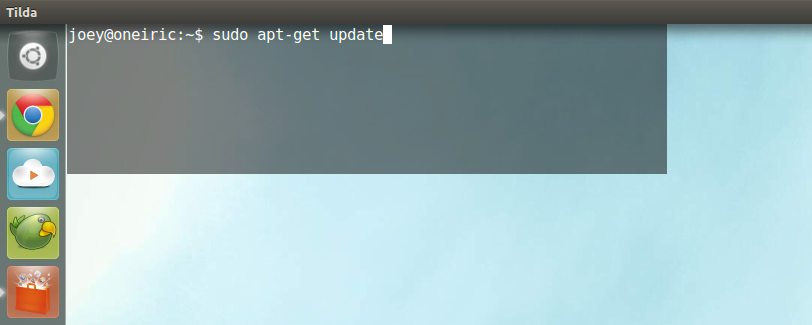
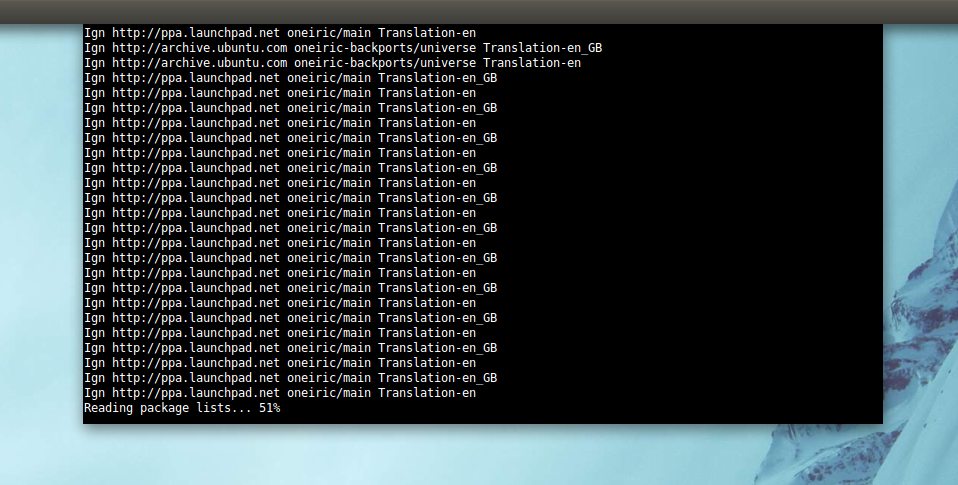
Tilda is a configurable “Quake-style” terminal emulator, meaning that it slides down from the top of your desktop when a user-configurable key (default is F1) is pressed.


Simply put, Tilda’s strongsuit is that it stays hidden from view until it is needed, at which point appears conveniently without your needing to search through menus to launch the application.  It is especially useful for one-off quick tasks such as installing or removing a package in apt.  In fact, though, all of those things can be said about any of the Quake-style apps mentioned here.  What sets Tilda apart is that its set of user-changable preferences allow it the flexibility to be capable of more complex tasks.

Specifically, its size can be configured so that it can be “maximized”, and a scroll bar can be toggled on and off.  Also, it looks quite pretty, if you’re into that sort of thing.  Its appearance (transparency, orientation, borders, animation[!], etc.) can be tweaked to your liking.

Preferences are available by right-clicking on an instance of Tilda and selecting the Preferences item from the menu that appears.


It is worth mentioning that Tilda hasn’t seen a new release in quite a while.

Guake


Guake is similar in functionality to Tilda, but has less “eye-candy”, and is a bit less configurable.  That being said, it also has some features that Tilda does not (such as a keyboard shortcut to switch tabs, which many Yakuake fans will be accustomed to).

A handle on the bottom right corner allows click-and-drag resizing, and users can also set the main window height in preferences.  The window’s border can’t be removed, which is a bit disappointing, but the scrollbar can be toggled on and off and transparency is adjustable.


Stjerm


Quake-style terminal app Stjerm seems to be overlooked, perhapse because it is configurable only via command-line or a text file.

That being said, the options stjerm provides are comparable to those of Guake and Tilda.  It’s also very lightweight, features tabs, and an option to toggle fullscreen.  Keyboard shortcuts for tabs and fullscreen-toggle would be a welcome addition, and their absence will likely be a dealbreaker for some.  Stjerm can be made to launch on startup with any combination of parameters (add it as an item in Startup Preferences), which makes remembering the launch options a non-issue.


To start Stjerm from Unity and specify the f1 key as the toggle key to hide/display stjerm, you would press alt+f2 and input:

stjerm -k f1

As always, experiment with different preferences to find your own sweet spot.


Yakuake


For those who use Kubuntu or don’t mind using KDE applications, Yakuake is a great option.

In spite of being KDE-native, it seemed quite responsive under Natty on a very modest netbook, and in terms of its featureset and polish, it feels at least as mature as any of the other applications on this list, but has the advantage of currently being developed more actively.


Source

How Well Did Your Ubuntu 11.10 Upgrade Go?


Ubuntu 11.10 has been out for little while now, so chances are many of you have upgraded.

If you choose to upgrade via Update Manager (that is you saw the prompt below and clicked ‘Yes, Upgrade Now’) I’d love to know how it went for you.

oads/2011/10/have-you-upgraded-via-update-manager.jpg" >

Why Do You want to Know?


In all my years of using Ubuntu I have always done a ‘fresh’ install (that is I’ve reformatted my Ubuntu partition and reinstalled it from a Live CD/USB). This is partly out of habit; when I first started using Ubuntu there were often drawbacks or issues that resulted from performing a ‘direct upgrade’.

But has it got any better? How did yours go?


Source

Tanglet: Boggle Style Game for Ubuntu


I’m currently addicted to various Boggle-style word games available via the Android market.

Needing to ‘get a fix217; when on Ubuntu at my desk I headed into the Ubuntu Software Centre to see if I could find something similar.

What is a Boggle Style Game?


The premise of ‘boggle style word games’ is to find as many words as possible from adjacent letters in a grid.

Words can be created by joining letters horizontally, vertically or diagonally in any direction, with the only rules being that letters have to be next to each other; words must be of at least 3 letters in length; and each letter can only be used once a single word.

Tanglet


‘Tanglet’ was the only result I found in the Software Centre, but as it’s pretty comprehensive and well designed there isn’t much need to find something else.

Tanglet word game in Ubuntu

To help make things that bit more interesting Tanglet chucks in a variety of play modes. These range from simple countdowns to ’3 incorrect words and the game ends’.

tanglet timer modes

Other features include a larger board (with a 4letter word minimum), and a score board for you to log your progress.

Tanglet is available to install via the Ubuntu Software Centre in Ubuntu 10.10 onwards.


No related posts.


Source

Alpha Release of Linux Spirit Font Available For Download


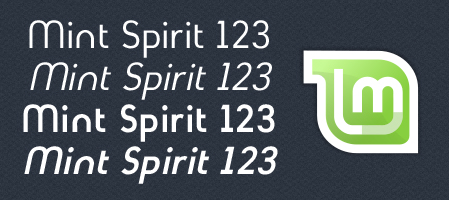
An alpha release of Mint Spirit – a new system font designed for Linux Mint Debian Edition – has been made available for download.ng>

Mint Spirit - The new font for Linux Mint

The font face has designed to give Linux Mint Debian Edition its ‘own identity’ and is said to draw inspiration from Futura, Gillius, NeoGothis and Ubuntu fonts.

The aim of the font, the developer says, is to create a ‘clear, fresh, nice and modern typeface usable for text and screen rendering, based on the LinuxMint logo.’

Alpha release


As an alpha release Mint Spirit is far from being a readily drop-in-replacement for more established fonts, although basic Unicode support is included in the alpha release.

The beta release will contain support for Turkish, Central and Eastern European languages, as well as ‘complete OpenType features’ and other glyph variations.

A web font version is also in the works.

Download Mint Sprint Alpha font

Linuxmint forums via libregraphicsworld


Source

Online Linux Games Store ‘Gameolith’ Launches UK and European Storefronts


The online Linux game download store Gameolith have launched two new sites for European and UK customers to purchase games in their own currencies. 

Prior to this launch all users purchased games in United States Dollars ($) irrespective of their locale.

Accessing Gameolith.eu and Gameolith.co.uk presents uses with game titles in Euros (€) and Pound Sterling (£) respectively.

The prices of games across the sites remain priced the same as before; so Brits and Eurozone customers won’t find themselves being charged more: a $4.99 games still costs £3.09/€3.59

Login details & games prices


User accounts/login details are said to work across all three sites so there should be no need for re-registering.


Source

New Movie Scope Brings Rich Meta-Data Filters to Movie Files in Ubuntu


Browsing  your movie files could soon become a lot easier in Ubuntu. 

A new ‘Movie scope’ in development for Ubuntu’s Unity File Lens aims to enhance browsing your locally available video files by adding searchable movie-related meta-data.

So rather than R16;just’ searching for the file name, the scope will let you search through other movie-related metadata, such as filtering though your files by release year, genre, actor names, and, potentially, a lot more.

For example: Say I want to watch a movie with (the wonderful) Julie Delpy in. I would open the Unity File Lens, select ‘Videos’ from the filter pane and enter her name in the search bar. All of my local movie files would then be filtered down so that only those movies starring Julie Delpy were left on display.

And then there’s the look: How much nicer do movie files look when presented with their “artwork” rather than a random thumbnail from the movie file? Very is the answer.

You can see the Movie Scope in action in the video below.


Via untriangle


Source

Five Pretty Awesome GNOME Shell Themes


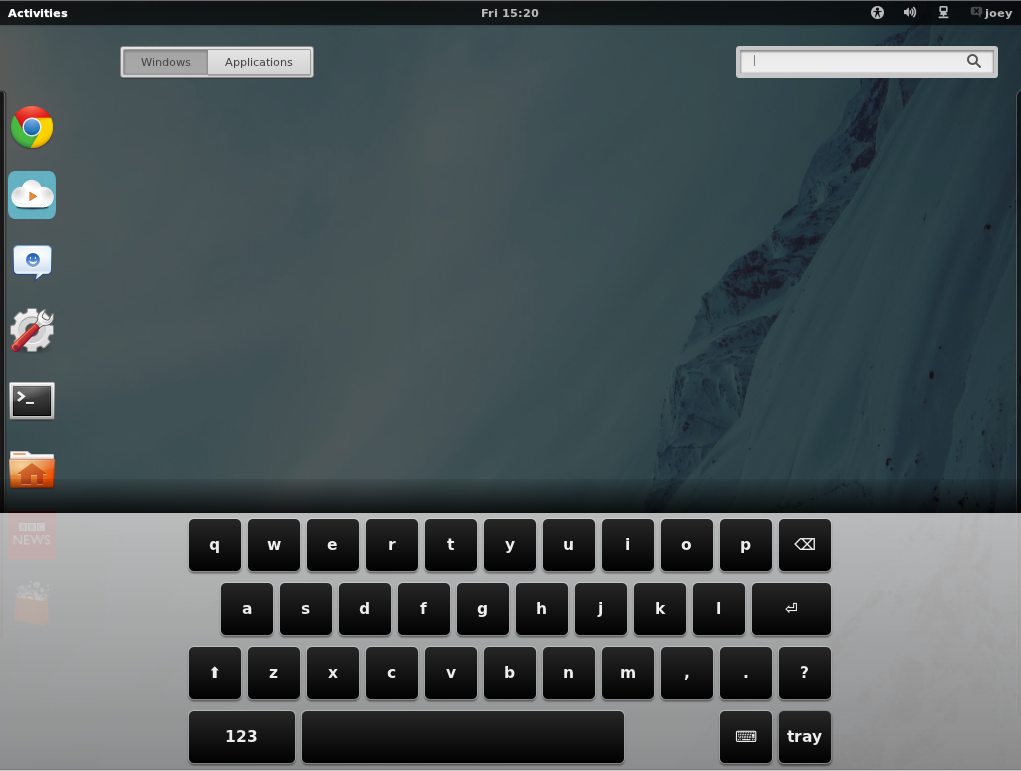
One of the great things about GNOME Shell is that it’s comprehensibly themeable – from the top panel and applet menus to the awesome on-screen keyboard.

Below are five are five of my top GNOME Shell theme picks from those we’ve featured or been ‘tipped’ about recently. Don’t know how to install GNOME Shell themes? We’ve got that covered.

Nord


elementary OS gnome Shell theme (not official)


London Smoke


Zukitwo


Smooth Inset


Got a different favourite? Working on a theme you think we should feature? Let us know via the usual methods.


Source

How To Install GNOME-Shell Themes in Ubuntu 11.10


Earlier today we posted five of our favourite themes for GNOME Shell.

Chances are you’ll want to try a few of those themes out on your desktop – but how to do it?

Providing you’re using Ubuntu 11.10 and GNOME-Shell, it’s actually quite simple once we’ve installed a few odds and ends first…


Preparation


The first thing we need to do (aside from ensuring we actually have GNOME-Shell installed) is to install the handy ‘user-theme-selector’ extension.

This isn’t provided in Ubuntu 11.10 out of the box but it is available to download in easily-installable .deb format.

First download and install:


Once completed install the next part: -


If you don’t already have it you’ll also need the GNOME Tweak Tool installed, too: -


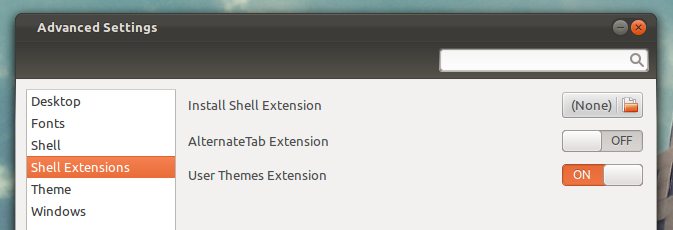
You’ll now need to log out and back in for the extension to be ‘picked up’ by the system, then enable the extension from the ‘Shell Extensions’ tab in the ‘Advanced Settings/GNOME Tweak Tool’ app.


All that’s left to do is log out and back in one more time so that the extension is fully enabled.

Installing Themes


The hard part is over: now all you need to do is have downloaded a GNOME Shell theme you like (see our list of 5 pretty nice ones) and install it.
  • Open the Advanced Settings/GNOME tweak tool
  • Choose ‘Themes’ from the left-hand pane
  • Click the ‘(none)’ button and navigate to and select your downloaded theme
  • You will see a small pop-up telling you that the theme installed correctly
  • Select it from the drop-down menu next to ‘Shell Theme’.
  • The theme will be applied instantly 

Not all themes available online are packaged correctly. In these instances you will need to create a hidden ‘.themes’ directory in your Home folder and place extracted themes inside there.


Source