2011-07-05

Novacut back on Kickstarter


OS X and Windows users always had no shortage of pro video editors but Linux never had such privilege. Novacut project aims to bring a pro video editor to Linux that is 100% free and open source right down to every single detail.

t-is-back-on-kickstarter/ks-novacut-brandmark/" >A year ago, Novacut tried to crowdfund their product project using Kickstarter but failed due to less publicity. This time they are back but now with an awesome community with support from some famous artists, The best ever brand identity and a full blown User Experience focus.

What is Novacut?
Here is a video that explains what Novacut is:-


You can support the project with any amount and read more at Kickstarter.


Source

GNOME Screencasts Episode 3: ‘Creating a Nifty Calculator’


The third episode in Daniel Siegel's 'GNOME Screencasts' series, which aims to introduce new developers to the GNOME platform, is now online and ready to view.

This episode, which weR17;ve helpfully embedded below, sees Daniel guide the creation of ‘a nifty calculator application’.


Last weeks episode “creating a fancy photo application” can be found here, whilst the first entry to the series can be viewed here.

Via Dgsiegel.net


Source

LibreOffice 3.4.1 Released, Brings Bugfixes


LibreOffice 3.4.1 has been released for all platforms.

The update, the first of the 3.4.x version line, is primarily a _blank">bug fix release and brings fixes for many of the new features and changes the previous release introduced.

“LibreOffice 3.4.1 fixes several bugs that affected the previous version, and can be safely deployed for production needs by most users.” ~ Document Foundation

Download


LibreOffice 3.4.1 can be downloaded in .DEB installer format for Ubuntu from the official website at libreoffice.org/download.

LibreOffice PPA is also available for Ubuntu users, however it is yet to be updated with the 3.4.x series.

The latest version of LibreOffice available from the Ubuntu Software Centre is LibreOffice 3.3.2.

The next release in the LibreOffice 3.4.x series is due late July.


Source

Ubuntu Oneiric Updates: Slicker Scrollbars, Modal dialogs, Guest Session & More!


Ubuntu 11.10 Alpha 2 is expected late next week. To help temper your appetite until its release here are a couple of recent changes in Oneiric…


Ubuntu’s unique Overlay Scrollbars have been tweaked a little. Now less round and sporting a new ‘thumb’.

"http://cdn.omgubuntu.co.uk/wp-content/uploads/2011/07/Screenshotaasa.png" >New overlay scrollbar thumb in OneiricThe scrollbar also now uses GTK colors: -

Overlay scrollbar in Oneiric using GTK colors

‘Modal Dialogs’ have made their first appearance in Unity 2D:


There’s also the welcome renaming of ‘Sound Preferences’  to ‘Sound Settings’.

sound settings preferences changed in Oneiric

There’s no more ‘About Me’ dialogue as a result of the shift to GNOME 3: -


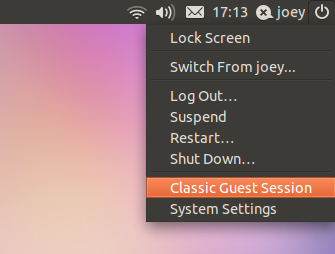
Support for a new ‘Classic Guest Session’ (though at the time of writing this doesn’t actually do anything yet): -


Thunderbird will very shortly be replacing replacing Evolution as the default mail client in the Oneiric Alpha. The Ubuntu-meta package lists it as a default inclusion, with Evolution and some of its associated package being removed.

As with all Oneiric developments and updates we report on what see above is subject to change between now and October.


Source

Multi-platform music app Minitunes updates with search, new icon, more


Minimalistic multi-platform music app  ’Minitunes’ has been updated with a new search feature, new icon and updated translations.

MiniTunes 1.0 can also ‘save’ playlists between sessions, a feature missing in previous releases.

s/2011/07/minitunesalbumview.jpg" >


Minitunes 1.0 comes almost one year after the last release of Minitunes, version 0.1.1, released mid-July last year.

Drawbacks to MiniTunes in Ubuntu


Minitunes is billed as ‘just another music player, only better’, with an interface that ‘unclutters’ your music playback experience.

These statements are are all true to various degrees: the MiniTunes UI is slick to look at, simple to use and the ‘information’ pane is possibly one of the best integrations of social meta-data in any music player period.

The minimal set of features MiniTunes offers is, in truth, part of its appeal.


However the lack of Ubuntu Sound Menu of Unity integration, Last.fm scrobbling, track data editing or option for multiple-music-folder-sources make it a tool best suited to those with the least demanding of music playback needs.

Power users are best suited to to alternative players such as Banshee, Amarok or Clementine.

Download MiniTunes for Ubuntu


Minitunes can be downloaded for 32bit Linux from the MiniTunes site at flavio.tordini.org/minitunes

Just download the archive, extract then double-click on the ‘MiniTunes’ file inside to run.

A PPA is also available for Minitunes, however at the time of writing it is yet to be updated to version 1.0.

MiniTunes is also available for OS X, and will shortly be available via the Mac App Store.


Source

Ubuntu Logo Appears in Samsung Galaxy S II Ad


The Ubuntu logo can be clearly seen on screen in the latest promotional spot for Samsung’s Galaxy S II Android phone.

The old-style ‘circle of friends’ is prominently positioned during a precession of application icons at the beginning of the advert.

Perhaps coincidentally, the logo sits next to the icon for Android game ‘Jumping Narwhal’. ‘Natty Narwhal’ was, of course, the development mascot of the Ubuntu 11.04 cycle.

Quite why the logo is shown so prominently (you’ll notice it far in advance of the MSN butterfly) is open to debate: it could be to reference Ubuntu One’s suite of Android applications (plausible); a reference to the fact that hackers have already installed Ubuntu on various Samsung devices (unlikely); or, most likely, plain old happenstance on the part of the creative hands behind it

Either way, it’s a pretty cool nod.

The logo can be see at the 0:06 mark in the TV spot embedded below.


Back in May we reported on the surprise appearance of the Linux ‘Penguin’ mascot ‘Tux’ in a TV advert for a children’s breakfast cereal…

Thanks to Bilal


Source

[How to] Fix ‘tinny’ sound quality in Ubuntu on an iMac


So you’ve just installed Ubuntu on your shiny new iMac 2011 model but the sound quality is torturously tinny. What to do?

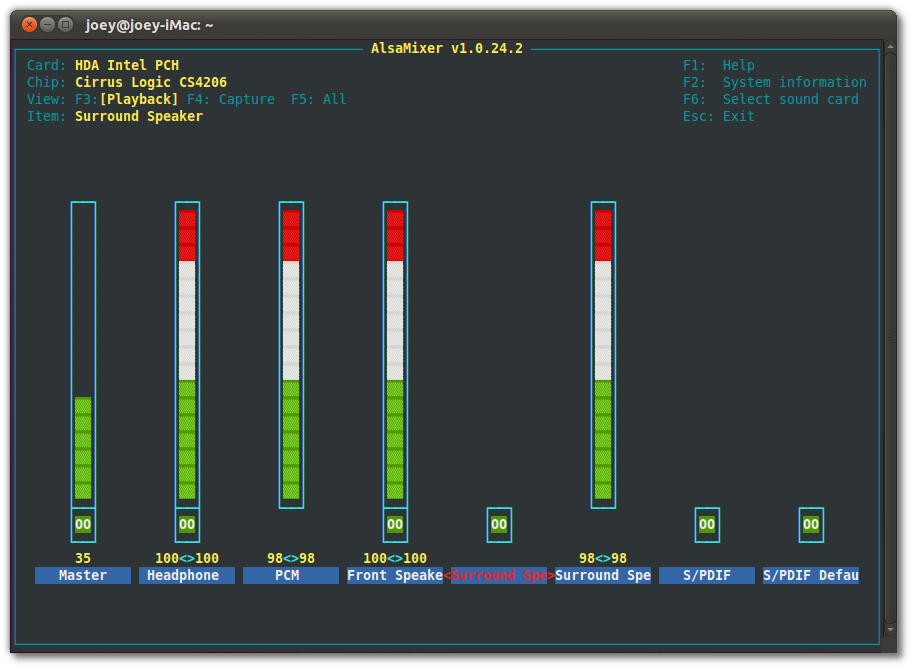
The cause is basic and easy to fix: We simply need to ‘unmute’ the surround speaker, then turn the surround sound up. Doing this in Ubuntu is painless and quick.

Fix iMac sound in Ubuntu
  • Open a Terminal
  • Type ‘alsamixer’ (without quotes) and hit ‘Enter/Return’
  • The following 1980′s style display will appear: -

Tinny sound in Ubuntu on your iMac? Solve it
  • Using the navigation keys on your Keyboard select the fourth pillar from the left called ‘Front Speaker’
  • Increase the volume of the ‘Front Speaker’ by pressing the ‘Up’ navigation key
  • Now navigate to the first ‘Surround Speaker’ entry
  • Un-mute it by pressing the ‘M’ key
  • Nudge across to the second and press the ‘Up’ key to increase its volume
  • Press CTRL+C to exit the ‘alsamixer’

All done – fire-up Banshee, YouTube or any other noise-emitting application to hear the audible difference.


Source

Critically Acclaimed Puzzle Game Braid Hits Ubuntu Software Centre


Platform puzzle game ‘Braid‘ is the  latest paid game to hit the Ubuntu Software Centre.

ads/2011/07/Screen-shot-2011-07-03-at-11.25.42.png" >Brain in the Ubuntu Software Centre

At first glance Braid looks like an old-school 2D side-scroller, very much in the mould of SNES or Genesis classics. But don’t be fooled – Braid is a puzzle game requiring more attention, cunning and brainpower than Sonic 2 or Golden Axe ever called for.

And whilst the brain-teasers, which require mastery of the game’s ‘Time’ manipulation mechanic, can be fiendishly difficult to solve they do give an insoluble sense of satisfaction upon completion.


Braid is available to buy in Ubuntu 10.04, 10.10 and 11.04 and is priced at $9.99.


Source

Linux Screenshot Tool ‘Shutter’ Update – Adds Minor Features, Bug Fixes


A new version of popular screenshot utility ‘Shutter’ has been released.

Shutter 0.87.3 finally sees the ability to capture the ‘real’ cursor image in use. Shutter previously only used the ‘standard’ cursor image.

Shutter can now capture 'real' cursors that are in use

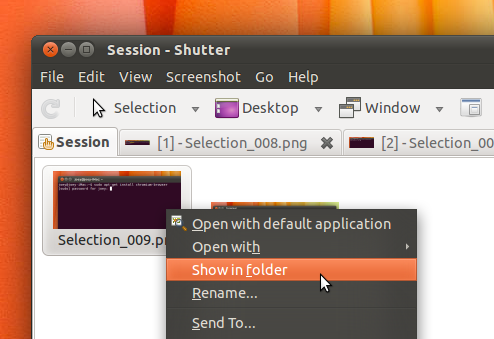
Another new addition is a ‘Show in folder’ menu entry to enable quick access to the location of a recently taken screenshot.


Other bugs fixed in the release include support for gnome-web-photo and minor UI changes to the ‘time out’ men.

Download


A PPA providing the latest release for Ubuntu 8.04, 10.04, 10.10, 11.04 and 11.10 is available @ launchpad.net/~shutter/+archive/ppa

If adding a PPA isn’t your thing standalone .Deb installers are also available for Ubuntu 10.04 through to 11.10 from the Shutter download page.


Source

Get ready for Ubuntu Developer Week


This is a guest post from Daniel Holbach, who will be posting updates about Ubuntu Development. (rackEvent','outbound-article','ubuntu-news.org']);">Original Post here).

Ubuntu Developer Week

Get ready for Ubuntu Developer Week from Monday, 11th July to Friday, 15th July. We will have one full week of online IRC sessions which will introduce you to Ubuntu Development and hacking on Ubuntu-related projects. Sometimes these sessions will take the form of Q&A sessions, sometimes of presentations and sometimes hands-on workshops.

Here’s the links for the impatient:

A lot of developers readily agreed to give sessions, so we have a wide variety of sessions this time around:
  • Packaging-related: Intro to Ubuntu development, specific packaging sessions: Mono, Python, Java, collaboration with Debian, fixing ARM build failures.
  • Project demos: Desktop Team Q&A, hacking on Launchpad, dotdee, Upstart, nux, hacking on compiz, hacking on Ubuntu websites, Lubuntu development, project lightning talks.
  • QA-related sessions: working with apport-reported bugs, debugging the kernel, intro to LAVA, how to triage bugs.
  • hacking sessions: porting to gobject introspection, making use of Launchpad translations, app creation with QML, writing Ensemble formulas.

As you can see: there will be something for everybody and we will have a great time.

If the times should be bad for you, don’t worry – there will be logs of the sessions made available afterwards. It’s only one week left to go, so please do us a favour and tell your friends! If you always wanted to learn something new, meet great people and start helping interesting projects, now is the perfect time: UDW is for you!

No related posts.


Source

Modal Dialogs Land in Ubuntu 11.10


Modal dialogs in Ubuntu 11.10 made their first appearance /www.omgubuntu.co.uk/2011/07/ubuntu-oneiric-updates-slicker-scrollbars-modal-dialogs-and-thunderbird-by-default/" >last week for Unity 2D users. Today they make their appearance in Unity proper.

The effect is provided by the ‘unity dialog handler’ plugin.

Unlike the Unity 2D version of the dialogs which look visible ’different’ from a regular dialog window the current Unity build retains the ‘native’ Ambiance/GTK themed look. One would imagine that this is likely to change at some point to match the original mock-up/Unity 2D.


Various aspects of the modal dialog effect can currently be tweaked using the Compiz Configuration Settings Manager, including the strength of the ‘dim’ applied to to parent window.

As ever all Ubuntu 11.10 development updates the features you see and read about are subject to change before the release of Ubuntu 11.10, due mid-October.


Source

Top Five Terminal Commands Everyone Should Know (as suggested by you)


Reader Raiyan mailed in with an idea for an article a few weeks back, titled ’Top five commands a new-comer to Linux should know.’

A great idea, but we all have different ideas about what makes a must-know command. So I took to thelick="javascript:_gaq.push(['_trackEvent','outbound-article','twitter.com']);" target="_blank"> @omgubuntu twitter account to ask you – the readers – what five commands would be in your top five.

There were literally hundreds of responses, so thanks folks! Below are the five most suggested commands by OMG! Ubuntu! twitter followers.

One | ‘sudo’


‘Sudo’, best thought of as ‘Superuser Do’, allows you to run commands with elevated permissions, typically those of the ‘root’ user.

If you have ever tried to run a command or install an application using the command line only to be told you ‘need to be root’ chances are you need to prefix your command with ‘sudo’.

sudo is always placed at the beginning of a command. For example, running the following command will update the System package lists:
  • sudo apt-get update

To run graphical applications as root – e.g. root Nautilus, root gedit to edit a system file – ‘gksudo‘ is best advised for use in place of ‘sudo’.

Why? Firstly it’s the ‘proper’ way, and secondly it avoids any potential ‘hiccups’ that can often occur when using ‘sudo’ to run graphical applications.

With this in mind you would run Nautilus file manager like so: -
  • gksudo nautilus

Two | cd


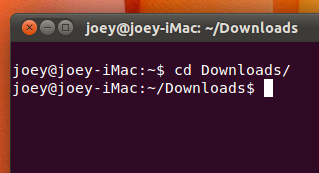
‘cd’ (Change Directory) is the command used for navigating folders in the Terminal.


By default the Terminal opens ‘in’ your Home folder.
  • ‘cd folder/name/’ will navigate you into that folder
  • To go back on folder type ‘cd -
  • Typing ‘cd‘ on its own returns you to the ‘Home’ folder

Tip: Remember you can always use the ‘Tab’ button to auto-complete commands and locations in the Terminal. To quickly get to the Desktop using the cd command one could just type
  • cd De

then hit the Tab key to complete the command to
  • cd Desktop/

Three | ls


Navigating into folders is all fine and dandy – but how can you tell if the file you want is in there?

That’s where the list command – ‘ls’ – comes in.
  • ‘ls’ lists all of the items (bar hidden files) in the current folder
  • ‘ls -al’ lists all items in a folder, including hidden files and directories

Four | sudo apt-get install


Applications available in the Ubuntu Software Center and added PPAs can be installed from the command line using ‘apt-get install‘.


For example, to install the Chromium web browser in Ubuntu you would enter: -
  • sudo apt-get install chromium-browser

apt-get can also be used to remove packages. To remove the Chromium web browser you would run: -
  • sudo apt-get remove chromium-browser

Five | uname -a


“How Can I tell What Kernel Version I’m Running In Ubuntu?”

Simply by opening a Terminal then entering:
  • uname -a


If you have an idea about something we should cover, send us a shout via the Tip Form.


Source