2011-01-11

Transparent Qt music player ‘MusicMe’ has been forced to change its name.

The change, the result of a trademark dispute with a European company, led to the  the developers turning their ears towards the linguistic worlds of Tolkien for some inspiration.

And thus the new name, ‘LinnyaR17;, was chosen

Despite ‘Linnya’ meaning, well, who-knows-what I have to say it is nevertheless a vast improvement on ‘MusicMe, a name that always sounded more like a bad euro-pop cable channel than an elegant music player.

Fans and followers should update any bookmarks to code.google.com/p/linnya


Thanks to Anthony

Related posts:
  1. MusicMe: a transparent music player for Linux
  2. Pragha Media player is both fast and familiar
  3. Moovida core media player is banshee with ads


Screenlets, the desktop widget framework for Linux

Screenlets, the desktop widget framework for Linux, was once the apple of eye-candy fans everywhere. Sadly over the last few years a lack of development and direction has lead to the project falling out of favour with users.

But thanks to the work of a reinvigorated Screenlets Development Team new life has been breathed into the stagnant project, resulting in some fantastic new screenlets and changes for us to enjoy on our desktops.

So, in honour of screenlets getting a bit of go again here are five widgets and/or themes I think are pretty neat.

Gmail


The default Gmail widget shipped with Screenlets is horribly dated and horrendously large. That’s why I’ve swapped it out for this smaller more sophisticated version created by ~luisperu9.

gmail screenlet

Download

Android clock theme


Clocks, clocks, clocks. We seemingly always need to be aware of the time and, for a lot of us, the default clock applet sat within our desktop panel isn’t good enough!

Screenlets ships with a clock widget by default and it comes with a multitude of themes. Most, like the stock Gmail theme mentioned above, suffer from looking  dated or poorly designed.

If you’re an Android fan – or just like the look of this ‘stock android clock skin’ – add it to your clock’s ‘themery’ and make reading the time less offensive on the eyes.

android screenlet theme

Download

Furious Moon


I’ll confess: this Moon phase screenlet isn’t exactly ‘new’ but it does look pretty swish when placed on the right kind of wallpaper (i.e. one with sky in).

moon screenlet ubuntu

Better still it is now included by default in the newly updated Screenlets package – so it’s painless to give it a try.

Wide Weather


Another ‘default’ choice now: meet WideWeather Screenlet. Yeah – it doesn’t look glossy or fancy and nor does it spin, speak or run a set command when it starts raining. But what it does do is tell you the weather without looking garish.

Launch it from the screenlets manager.

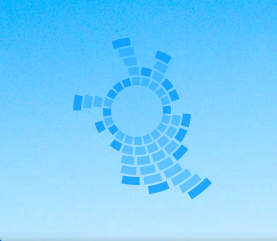
Circle Theme for Impulse Screenlet


The author of this theme calls it ‘one of the most amazing pieces of eye candy’. And, to give credit, it is very neat and very bling-y.

The theme works with the ‘Impulse ‘PulseAudio’ Visualisation Screenlet’ (Download here) and adds a cool circular, spinning and audio-reactive visualizer to your desktop.


Download

Installing Screenlets


The best, and recommended, way of installing the ‘updated’ version of Screenlets is to add the official development PPA. This may contain bugs but it will also contain fixes, features and new screenlets sooner than anywhere else.

To add open a Terminal (Applications > Accessories > Terminal) and enter the following two lines separately, entering your user password when prompted.: -

sudo apt-add-repository ppa:screenlets-dev/ppa
sudo apt-get update && sudo apt-get install screenlets python-rsvg

Launch the ‘Screenlets Manager’ from ‘Applications > Accessories > Screenlets Manager’

Related posts:
  1. ‘Flip style’ theme for Screenlets clock widget
  2. Android Clock screenlet theme
  3. Android Clock Screenlet Theme


CES 2011 saw a veritable armoury of Ubuntu powered devices all ready to make a serious impact amongst competitors

CES 2011 saw a veritable armoury of Ubuntu powered devices all ready to make a serious impact amongst competitors.

None, however, impressed me as much as this Table PC demo running Ubuntu as its core OS. It’s pure multi-touch ‘mazingness which, folks, is better viewed than read.


"Table screen supporting as many touch points as you can fit on the screen. Saw thirty touch points (six hands) working perfectly in the demo."

Source: Chris Kenyon

Related posts:
  1. Short video shows off uTouch on Ubuntu Unity
  2. Help test Ubuntu 10.10 multi-touch
  3. Multi-touch comes to Ubuntu 10.10

Okay, so we all know that Natty isn’t going to pop out into release land preamturely.

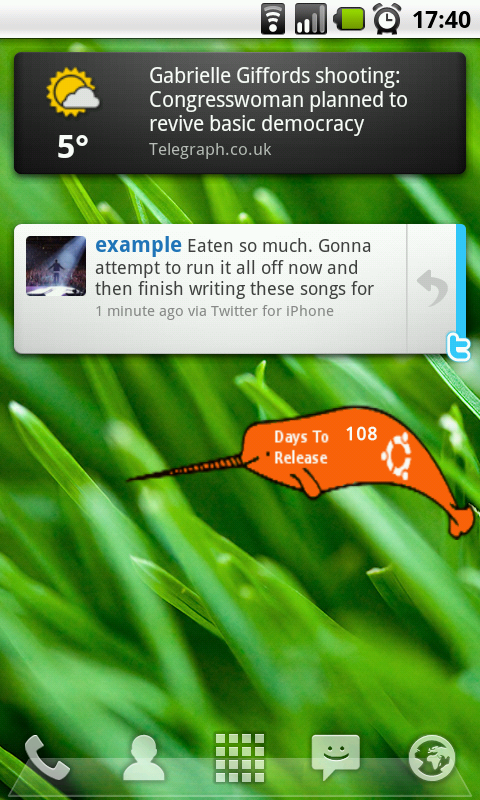
But for those of us nevertheless comforted by keeping one eye on the prize the following Android homescreen widget has ‘must-have’ written all over it.

It does nothing more than you̵7;d expect it to, displaying a basic text stat on the number of days ‘until release’. All inside an actual Narwhal.

Natty countdown widget for Android

Sweet.

Grab the widget by snapping the code below or ripping some mouse-click foo here.


Related posts:
  1. Impatient for Ubuntu Natty? Add this countdown widget to your blog
  2. Begin your countdown to Natty with this ‘Avenging Narwhal’ play set…
  3. Receive Android call, text alerts on your Ubuntu Desktop


Source


Enlightenment based Linux distribution Bodhi has hit Beta status.

The lightweight OS has a few notable changes in this release, not least of which is a ‘first boot configuartion’ wizard that tries to diplomatically tailor Bodhi to your tastes.

For all the wrongness inherent in bamboozling new users with such an approach it has thrown up a few neat things. Well, four to be precise:

Fed up with the constant gripes made against Bodhi’s default theme users now have no choice but to select one on their own – before they can even reach the desktop! With four beautiful new styles/layouts to choose from it’ll be hard to go wrong.

Other changes present include updated packages, a tweaked Plymouth theme and the usual pan-friend serving of bug fixes.

Download @ sourceforge.net/projects/bodhilinux/files/bodhi_0.1.4.iso/download (394MB)

Related posts:
  1. Bodhi Linux hits Alpha 4, gets ace new look


Source


We’ve fallen in love with ‘Borderless’ Metacity theme mods of late – the elementary example we featured last week was particularly striking.

Rather than wait for your favourite theme maker to add a borderless-variant for you to install why not do it yourself? OMG! Ubuntu! reader zach4618 sent in a super easy guide on how to ‘mod’ a theme yourself.

“OMG! has covered borderless themes lately, and there seems to be some desire for borderless metacity themes (esp. Ambiance/Radiance).

I came across a really simple method of modifying *any* metacity theme to make it borderless.”

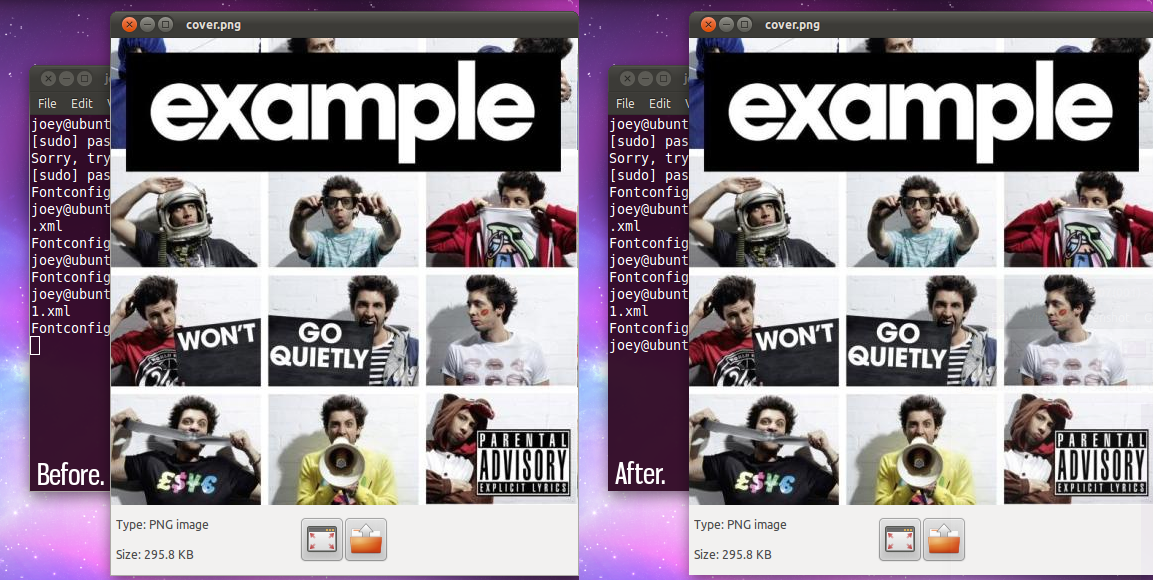
Here’s Ubuntu’s Ambiance theme both before and after I ‘modded’ it to lose its pixel-sized border: -

Borderless Ambiance Ubuntu theme

How to make any Metacity borderless


1. Open a new Terminal session (Applications > Accessories > Terminal) and enter the following: -

sudo gedit /usr/share/themes/[theme name]/metacity-1/metacity-theme-1.xml

(note: theme names are capitalized, e.g.: Radiance, Ambiance, etc.)

2. Scroll down to lines numbered 14-16  in the Gedit window that opens.(Don’t see any numbers? Hit Edit > Preferences > View and check ‘Display line numbers’.)

Change the “value” at the end of the three lines in question from “1″ to “0″.

Thusly: -

<distance name=”left_width” value=”1″/>
<distance name=”right_width” value=”1″/>
<distance name=”bottom_height” value=”1″/>

becomes: -

<distance name=”left_width” value=”0″/>
<distance name=”right_width” value=”0″/>
<distance name=”bottom_height” value=”0″/>

3. Save the file and then change your theme using Appearance Preferences.

If you modified a theme that you were already using, you must “refresh” the theme by changing to a different theme, then changing back.

4. To revert back to normal, follow steps 1 & 2 to change the values back to 1.

To overcome the “bug” of not being able to resize the window by grabbing it, you can use:

Alt + F8 or Alt + Right mouse scroll or Right-click title bar > Resize

Source

Related posts:
  1. elementary-borderless theme is a simple yet striking change
  2. Ubuntu 10.10 Ambiance & Radiance themes for Chrome, Firefox & Opera [Updated]
  3. Elementary Theme Getting New Metacity


Source


Minimalistic desktop panel app ‘Wingpanel’ looks good but remains far too unstable for everyday use.


In the meantime it’s easy to ‘recreate’ the look of a side-bound mini-panel using other applications.

Following on from our guide on transofrming a Gnome panel into a Wingpanel comes this guide for AWN users by ‘IGotNoNick.


Like the ‘text on screen’ tool used in the video? It’s called Screenkey.

Related posts:
  1. Create a ‘wingpanel’ effect using the default gnome panel
  2. Elementary’s new Wingpanel in action
  3. Wingpanel – elementary’s slick new space-saving panel project


Source


So you’re playing around with Ubuntu 11.04 Alpha and, well, things are going a bit awry. Here are a few useful tips harvested from AskUbuntu that may save you a headache or two…

How do I ‘reset’ Unity?


If your experiments with Unity have led to a things messing up it’s tp://askubuntu.com/questions/17610/how-do-i-reset-my-unity-configuration" onclick="javascript:_gaq.push(['_trackEvent','outbound-article','askubuntu.com']);" target="_blank">simple to ‘reset’.

Open a terminal and run: -

unity –reset

How do I display the date in the Unity panel?


By default Natty’s Indicator clock only displays the time. If you’re forever in a state of time-disorientation you may need to know what day/the date is too.

Although no GUI option yet exists for enabling the date, Jamie Strandboge has figured how a quick hack to enable it.

Open a Terminal and enter the following command to display the date: -

gsettings set org.ayatana.indicator.datetime show-date true

Optionally, run the following command to display the day: -

gsettings set org.ayatana.indicator.datetime show-day true

To switch either/both off simply run the commands again using the ‘false’ suffix in place of ‘true’.

How do I switch back to the ‘normal’ Gnome desktop?


Ubuntu 11.04 still ship with a ‘standard’ gnome desktop – it’s just not the ‘default’. It’s there for users unable to run Unity and for those who, put simply, don’t want to run Unity.

To switch to it simply log out of your Unity session and select ‘Classic Gnome desktop’ from the sessions menu at the log-in screen.

How do I make the launcher auto-hide?


Unity’s slick sidebar can auto-hide when in the way. To enable this feature you will need to install the CompizConfig-Settings Manager application from the Ubuntu Software Center (or by clicking here).

One installed, launch the manager and enter ‘Unity’ in the search box. From there check the ‘Enable hiding’ option and et voila your launcher will now intelligently hide.

Related posts:
  1. Ubuntu Unity launcher won’t be ‘moveable’
  2. Ubuntu 11.04 Natty Narwhal Alpha 1 released
  3. Desktop Unity: Your questions Answered


Source


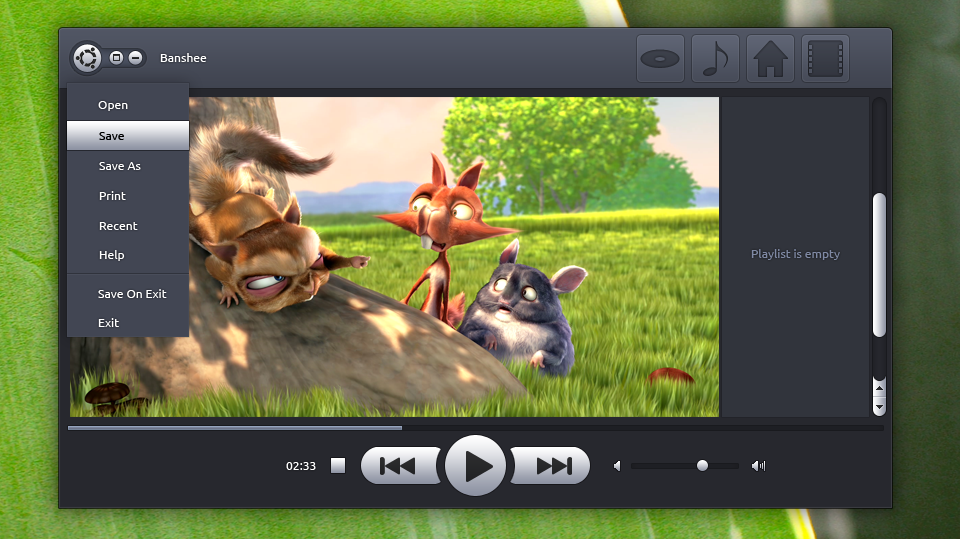
The following theme mock-up by ~RustedThorn may be a tad indulgent on the branding scales, and closing an application via a menu every time would get real annoying real fast, but you know what? I really don’t care. It looks beautiful.

ubuntu_theme_mockup_v3_by_rustedthorn-d36ve27

Check out the full image @ rustedthorn.deviantart.com

Related posts:
  1. Stunning Ubuntu Tablet OS concept by Izo


Source


Stay up-to-date with the latest news from your favourite feeds directly on your desktop with News – an Open Source RSS ticker for Linux.

The RSS ticker – a thin bar displaying scrolling news feed items your desktop – is light and an extensive set of preferences lets you control the scrolling speed, update, fonts, bar size, transparency, colours, and a whole lot more.


You’ll certainly want to dive into these; the default settings for font, scroll speed and bar size were all rather dizzying on my desktop. A couple of tweaks later and it was looking find – as pictured above.

The default feed is provided by BBC News but this can be changed via ‘File > Open RSS feed’.

Download (.deb) @ newsrssticker.com/download

No related posts.


Source


Another cell phone has fallen under the charms of Ubuntu’s versatility: this time the Samsung’s Nexus S.

oads/2011/01/DSC00581.jpg" >DSC00581

As with other ports of this nature the end result isn’t meant to be a perfect drop-in replacement for a mobile OS; these hacks exist simply because ‘you can’.

The ‘usual’ bout of apps are present and, to lesser degrees, are usable. But it’s not all cotton candy and Wanda the fish for the port: what one might consider the most vital aspect – i.e. the touchscreen – isn’t working!

The developer assures this will be fixed relatively soon, so eager – borderline crazy – owners of Samsung’s most ‘spensive Google phone will have to wait a bit longer before they can feel the wonderful lag of the netbook launcher underneath their finger.

More information on this specific port can be found on the XDA forum.

If I had a Nexus S I’d be far too scared to touch it let alone install Ubuntu on it. What devices would you like to see Ubuntu ‘hacked’ onto next? 

pictuga, via Slashgear via XDA Forums

Related posts:

  1. Ubuntu ported to Windows Mobile handset


Source


Will Banshee support Photo management?

This is a common question both in the comments here but also in my private mails so I thought I would address it on OMG! Ubuntu! as my first editorial on the site.

Firstly this question stems from reading the slides from Banshee lead developer Aaron Bockover’s GUADEC 2009 talk on Banshee 2.0 (specifically slide 27) and ignoring the past slides as well as the use of the word platform. [more information]

Banshee now actually does Photos, it has been deployed for some months but got very little press adding to the misunderstanding surrounding this question. The 0.7.x development cycle of F-Spot which recently led to their LTS 0.8.0 release involved porting F-Spot to Hyena.

Hyena is a core part of Banshee but has previously been split out as its own separate project and it is part of the Banshee platform Aaron talked about in the slides and on his blog.

Hyena is what allows Banshee its powerful database features and allows for easily created custom widgets and UIs, all of which is now open for F-Spot (and other Hyena using projects like PDFMod) in the future.

So there you have it, Banshee actually already has Photo management support. It’s just called F-Spot.

As for the other items on the 2.0 list from 2009, some came true, some did not, still things happened which weren’t predicted or planned. But since I have fun answering Banshee questions I will leave it to the commenters to pick the next ones.

OMG people, the floor is yours.

Related posts:
  1. Banshee gets new UI for Podcasts
  2. Banshee 1.7.5 released with improved hardware support
  3. Support GNOME by buying music in Banshee


Source